> ## Documentation Index
> Fetch the complete documentation index at: https://cogno.studio/docs/llms.txt
> Use this file to discover all available pages before exploring further.
# 0.3.0
> A new three-step setup for the desktop app, Settings organized by who they apply to, a reply every time you mention Cogno, and one switch to turn a Project's channels off.
## TL;DR
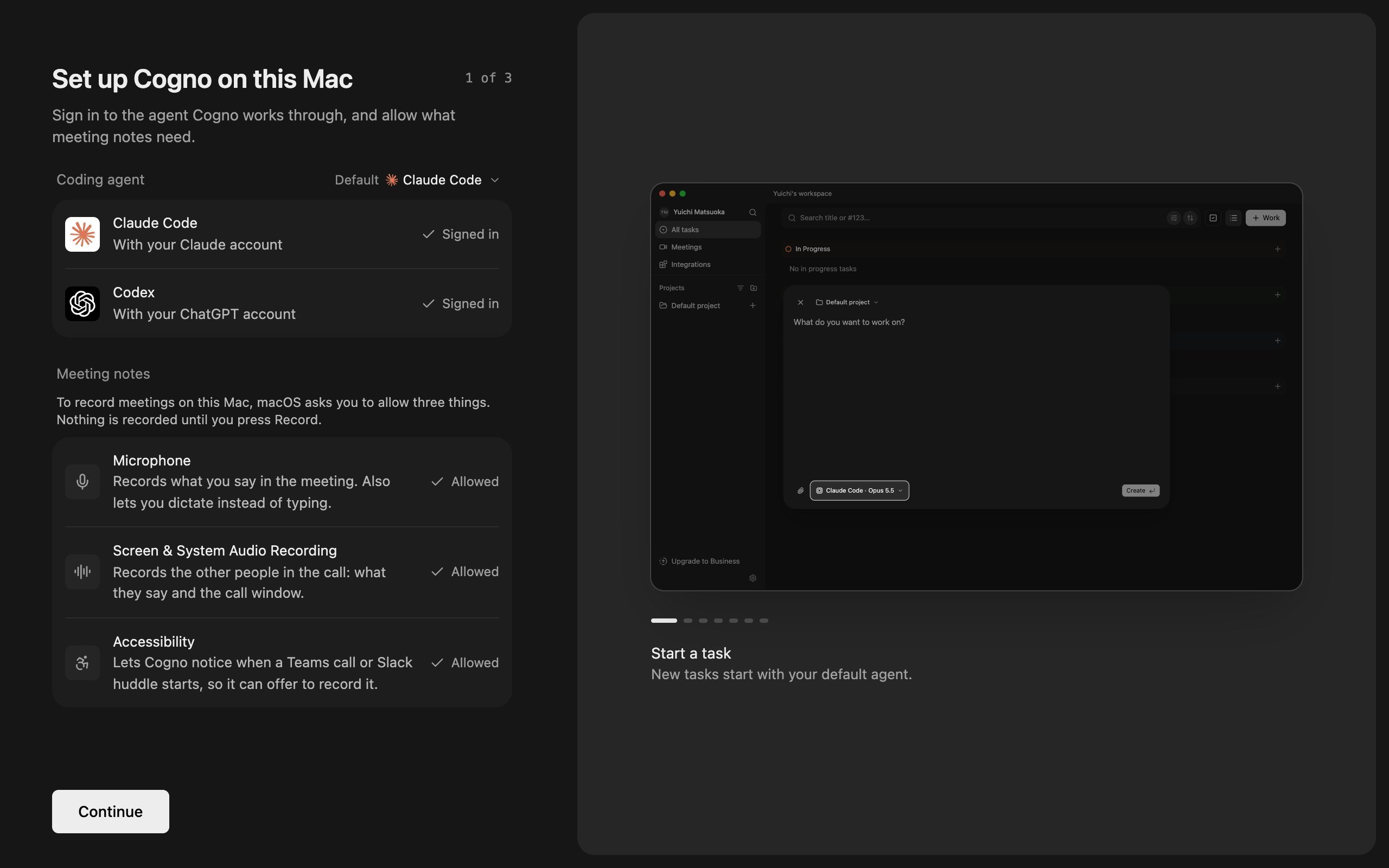
* **Set up in three steps.** The first launch of the desktop app now walks you through this computer, your workspace, and your tools, and only asks you to sign in to one coding agent.
* **Settings, reorganized.** Settings are grouped into **Personal** and **Workspace**, with new **Preferences**, **Recording**, and **Computers** pages. Changes save as you make them.
* **One access choice per computer.** **Default access** sets how far the work you start may go. Work Cogno starts on its own always runs in **Auto**.
* **Mention Cogno, get an answer.** In Slack, Microsoft Teams, and Discord, Cogno replies to every mention, answers first before longer work, and sends one reply even when several Projects read the channel.
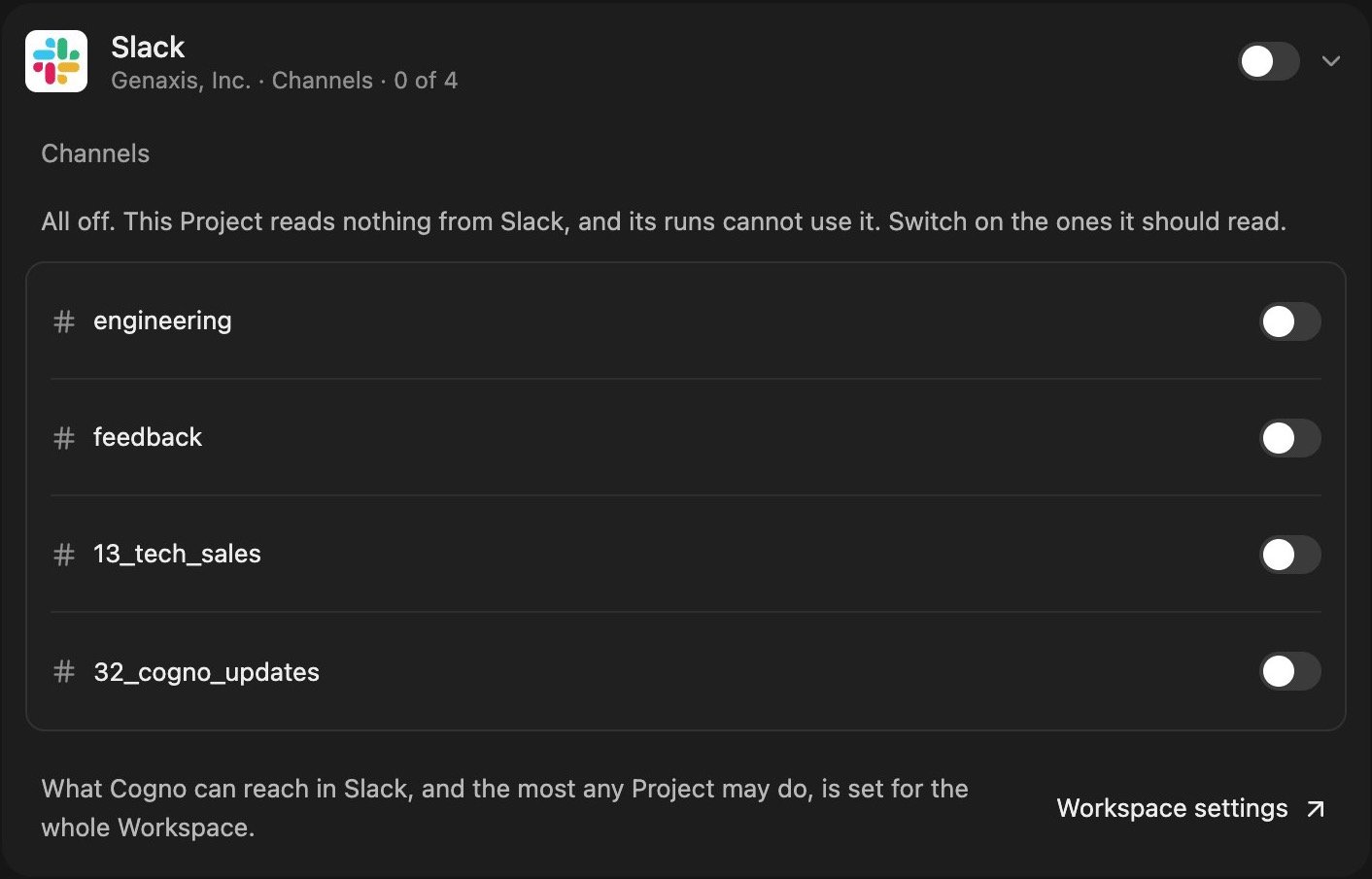
* **Turn a Project's channels off in one move.** The switch on a Project's integration turns every channel off and keeps the list open, so you can switch on only the ones you want.
## Set up in three steps
The first time you open the desktop app, three steps get you ready. Only one thing is required: sign in to Claude Code or Codex. Everything else is optional and can be done later.
1. **Set up Cogno on this Mac.** Sign in to Claude Code with your Claude account or Codex with your ChatGPT account, and choose which one is the **Default**. On a Mac, the same step asks for the three permissions meeting notes use: **Microphone**, **Screen & System Audio Recording**, and **Accessibility**. Each one says what it is for, and nothing is recorded until you press Record.
2. **Your workspace.** Choose **Set up my workspace** to name it, add an icon, and **Invite your team** by email or with **Copy invite link**. Choose **Join my team** to paste an invite link and see which workspace you are joining and who invited you.
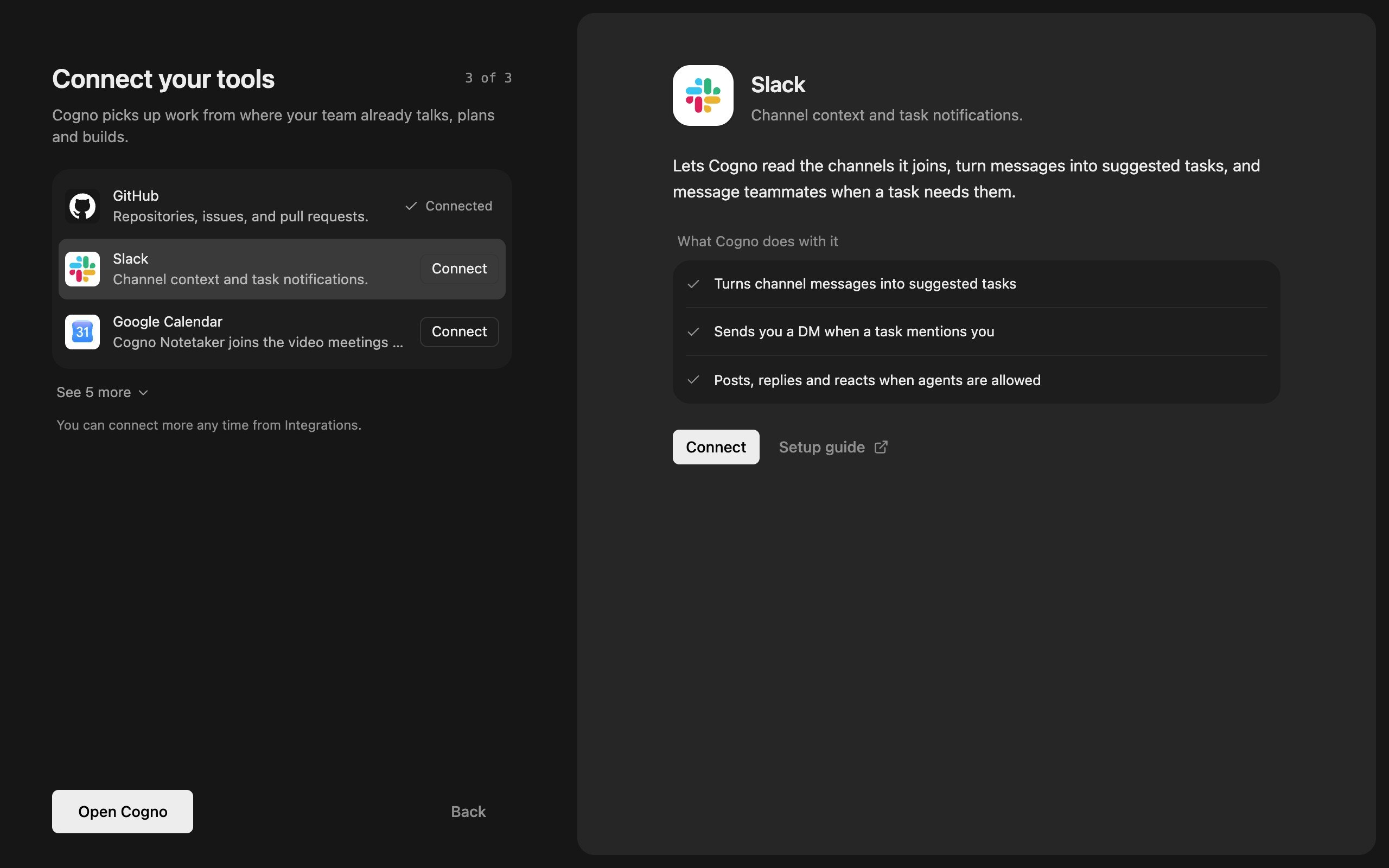
3. **Connect your tools.** GitHub, Slack, and Google Calendar come first, and the rest open below them. Select a tool to read **What Cogno does with it**. After you connect it, its settings open right there.
**Open Cogno** takes you into the app.
 ## Settings, reorganized
Settings are grouped by who they apply to:
| Group | Pages |
| - | - |
| **Personal** | **Profile**, **Preferences**, **Recording**, **Security**, **Computers** |
| **Workspace** | **General**, **Memory**, **Members**, **Integrations**, **Security**, **Billing & usage** |
* **Preferences** holds how the app looks and the **Pane arrangement** of a Task. ⌘, opens it.
* **Recording** puts **Allow meeting recording** and **Desktop recording** for Microsoft Teams and Slack Huddles on one page.
* **Computers** shows this computer first (its Engine, the **Default agent**, and the Claude Code and Codex it runs), then **Your computers**. Each computer's actions are in its **More actions** menu.
* **General** holds the workspace's name, the language Cogno writes in, time zone, recording, and more. Changing the language asks you to confirm first, because it changes what Cogno writes for everyone in the workspace.
* There are no Save buttons. A text field saves when you leave it or press Enter, and a choice saves when you pick it. You only see a message if saving fails.
* **Report a problem or request** moved out of Settings to the sidebar.
## One access choice per computer
Each computer now has one access setting, **Default access**: **Review changes**, **Auto**, or **Full access**. It decides how far a turn you start may go. Work Cogno starts on its own, such as answering a mention, always runs in **Auto**.
**New tasks start with** sets the **Default agent** for new tasks. Each task can still switch.
## Settings, reorganized
Settings are grouped by who they apply to:
| Group | Pages |
| - | - |
| **Personal** | **Profile**, **Preferences**, **Recording**, **Security**, **Computers** |
| **Workspace** | **General**, **Memory**, **Members**, **Integrations**, **Security**, **Billing & usage** |
* **Preferences** holds how the app looks and the **Pane arrangement** of a Task. ⌘, opens it.
* **Recording** puts **Allow meeting recording** and **Desktop recording** for Microsoft Teams and Slack Huddles on one page.
* **Computers** shows this computer first (its Engine, the **Default agent**, and the Claude Code and Codex it runs), then **Your computers**. Each computer's actions are in its **More actions** menu.
* **General** holds the workspace's name, the language Cogno writes in, time zone, recording, and more. Changing the language asks you to confirm first, because it changes what Cogno writes for everyone in the workspace.
* There are no Save buttons. A text field saves when you leave it or press Enter, and a choice saves when you pick it. You only see a message if saving fails.
* **Report a problem or request** moved out of Settings to the sidebar.
## One access choice per computer
Each computer now has one access setting, **Default access**: **Review changes**, **Auto**, or **Full access**. It decides how far a turn you start may go. Work Cogno starts on its own, such as answering a mention, always runs in **Auto**.
**New tasks start with** sets the **Default agent** for new tasks. Each task can still switch.
 ## Mention Cogno, get an answer
When you @mention Cogno in Slack, Microsoft Teams, or Discord:
* **Cogno always replies.** It knows which account is its own, so it no longer mistakes another bot's post for its own answer.
* **It answers first.** A short reply comes in the same conversation before any longer work, and the result follows in the same place.
* **One mention gets one reply**, even when several Projects read the channel. That reply can work across all of those Projects.
* **Projects without a folder can answer too.** After this update, Cogno keeps its own working folder on each member's computer and uses it when no one has connected a folder to the Project.
**Send to Microsoft Teams** and **Send to Discord** in **Agent tools** now default to **Allow**, so Cogno can reply there without extra setup. A choice you already saved stays as it is.
## Turn a Project's channels off in one move
In **Project settings → Integrations**, the switch next to a connection now turns every channel off and keeps the list open. Switch on only the channels the Project should read. You can also turn off the last channel. When everything is off, the Project reads nothing from that tool and its runs cannot use it.
## Mention Cogno, get an answer
When you @mention Cogno in Slack, Microsoft Teams, or Discord:
* **Cogno always replies.** It knows which account is its own, so it no longer mistakes another bot's post for its own answer.
* **It answers first.** A short reply comes in the same conversation before any longer work, and the result follows in the same place.
* **One mention gets one reply**, even when several Projects read the channel. That reply can work across all of those Projects.
* **Projects without a folder can answer too.** After this update, Cogno keeps its own working folder on each member's computer and uses it when no one has connected a folder to the Project.
**Send to Microsoft Teams** and **Send to Discord** in **Agent tools** now default to **Allow**, so Cogno can reply there without extra setup. A choice you already saved stays as it is.
## Turn a Project's channels off in one move
In **Project settings → Integrations**, the switch next to a connection now turns every channel off and keeps the list open. Switch on only the channels the Project should read. You can also turn off the last channel. When everything is off, the Project reads nothing from that tool and its runs cannot use it.
 ## Also in this release
* **Drafts stay:** a prompt you type in a new **Work** stays when you close it, and comes back the next time you open it on the same Project.
* **Videos play in place:** a video attached to a task description plays right in the description.
* **Descriptions stay current:** in a conversation on a Task, Cogno keeps the task description up to date as it works, without being asked.
* **Meetings:** new workspaces start with meeting recording on. In the desktop app, Microsoft Teams calls and Slack Huddles offer to record unless you turn this off under **Settings → Recording**.
* **Fresh workspaces:** a new workspace starts without a default Project.
* **Codex:** the desktop app now ships Codex 0.159.3, whose default model is **GPT-6.1 Sol**. Work that Codex runs on your computer no longer fails because a helper it needs was missing from the app.
* **Fixes:** large diffs load in **Review**, and model names in the composer read like **Opus\[1M]**.
## Related docs
* [All releases](/docs/release-notes)
* [Getting started](/docs/getting-started)
* [Manage your machines](/docs/machines)
* [Set up a project](/docs/projects)
* [Connect Slack](/docs/slack-integration)
* [Connect Microsoft Teams](/docs/teams-integration)
* [Connect Discord](/docs/discord-integration)
This documentation is built and hosted on [Mintlify](https://mintlify.com), a developer documentation platform.
## Also in this release
* **Drafts stay:** a prompt you type in a new **Work** stays when you close it, and comes back the next time you open it on the same Project.
* **Videos play in place:** a video attached to a task description plays right in the description.
* **Descriptions stay current:** in a conversation on a Task, Cogno keeps the task description up to date as it works, without being asked.
* **Meetings:** new workspaces start with meeting recording on. In the desktop app, Microsoft Teams calls and Slack Huddles offer to record unless you turn this off under **Settings → Recording**.
* **Fresh workspaces:** a new workspace starts without a default Project.
* **Codex:** the desktop app now ships Codex 0.159.3, whose default model is **GPT-6.1 Sol**. Work that Codex runs on your computer no longer fails because a helper it needs was missing from the app.
* **Fixes:** large diffs load in **Review**, and model names in the composer read like **Opus\[1M]**.
## Related docs
* [All releases](/docs/release-notes)
* [Getting started](/docs/getting-started)
* [Manage your machines](/docs/machines)
* [Set up a project](/docs/projects)
* [Connect Slack](/docs/slack-integration)
* [Connect Microsoft Teams](/docs/teams-integration)
* [Connect Discord](/docs/discord-integration)
This documentation is built and hosted on [Mintlify](https://mintlify.com), a developer documentation platform.