> ## Documentation Index
> Fetch the complete documentation index at: https://cogno.studio/docs/llms.txt
> Use this file to discover all available pages before exploring further.
# Connect Slack to Cogno
> Connect Slack so Cogno turns your team's messages into proposed tasks and notifies you back in Slack — no filing.
 ## At a glance
| | |
| ------------------ | ---------------------------------------------------------------------------------------------------------------------- |
| **Direction** | Two-way — Cogno reads your Slack messages and turns them into proposed tasks, and sends notifications back into Slack. |
| **Connect with** | Slack OAuth — one click, no tokens to copy. |
| **Who can set up** | Any workspace member who can open **Settings**. |
| **You'll need** | A Slack workspace where you can install apps. |
Slack is where the work already gets talked about. Connect it and Cogno reads what your team is already saying — turning messages into **proposed tasks** you accept with a glance, and posting notifications back into Slack so no one changes tools. You don't file anything; Cogno does.
## Before you start
* You can open **Settings** in the target workspace. Slack setup is not owner-only — any member who reaches Settings can connect it.
* You can install apps in the Slack workspace you want to connect (or someone who can is available to approve it).
* Use a Slack workspace that represents the team, not a personal one, so the members Cogno maps are the people you work with.
## Connect Slack in Cogno
Open **Settings → Integrations** in the target workspace and select **Slack**.
Click **Connect Slack**. Cogno opens Slack's authorization screen in a new window.
Review what Cogno may access and approve. Slack returns you to Cogno.
The Slack page now shows a **Connection** section with your Slack team's name. Cogno syncs your Slack members in the background so you can map them next. It does not send workspace invitation DMs through Slack.
## At a glance
| | |
| ------------------ | ---------------------------------------------------------------------------------------------------------------------- |
| **Direction** | Two-way — Cogno reads your Slack messages and turns them into proposed tasks, and sends notifications back into Slack. |
| **Connect with** | Slack OAuth — one click, no tokens to copy. |
| **Who can set up** | Any workspace member who can open **Settings**. |
| **You'll need** | A Slack workspace where you can install apps. |
Slack is where the work already gets talked about. Connect it and Cogno reads what your team is already saying — turning messages into **proposed tasks** you accept with a glance, and posting notifications back into Slack so no one changes tools. You don't file anything; Cogno does.
## Before you start
* You can open **Settings** in the target workspace. Slack setup is not owner-only — any member who reaches Settings can connect it.
* You can install apps in the Slack workspace you want to connect (or someone who can is available to approve it).
* Use a Slack workspace that represents the team, not a personal one, so the members Cogno maps are the people you work with.
## Connect Slack in Cogno
Open **Settings → Integrations** in the target workspace and select **Slack**.
Click **Connect Slack**. Cogno opens Slack's authorization screen in a new window.
Review what Cogno may access and approve. Slack returns you to Cogno.
The Slack page now shows a **Connection** section with your Slack team's name. Cogno syncs your Slack members in the background so you can map them next. It does not send workspace invitation DMs through Slack.
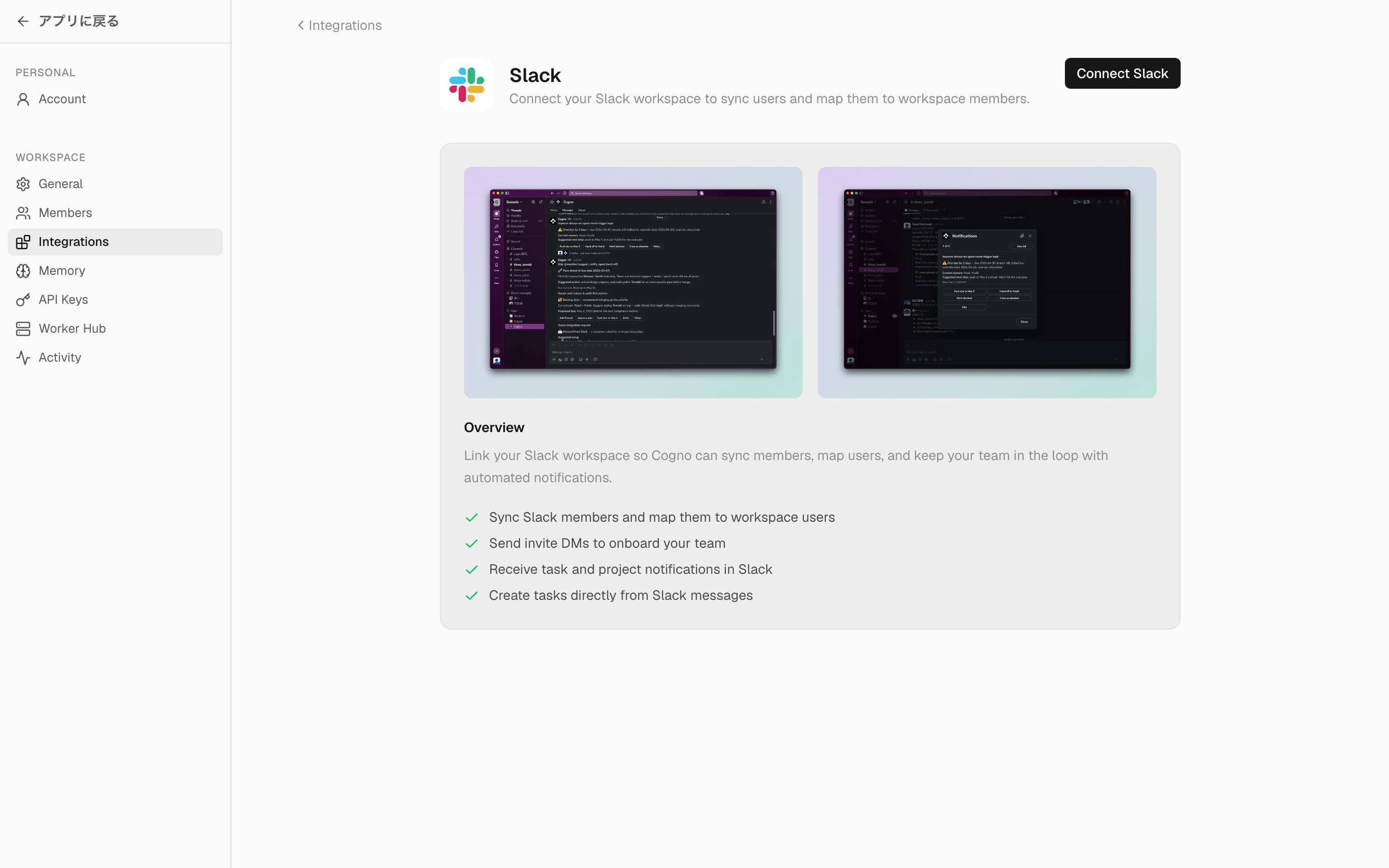 Connecting is a single OAuth step — there is no webhook URL, setting ID, or token to copy by hand. Cogno holds the connection for you and refreshes access automatically.
## What Cogno does with Slack
Once connected, Slack becomes an **event source**: your messages flow into the loop and Cogno acts on them. Three things happen.
| Capability | What it means |
| ---------------------------- | ------------------------------------------------------------------------------------------------------------------------------------------------------------------------------------------------------------------------- |
| **Turn messages into tasks** | Cogno reads your Slack conversations and proposes tasks from them. You review each **proposed task** and accept it (**Active**), keep it for later (**Backlog**), or send it back for context — a few seconds, no filing. |
| **Notify you in Slack** | Cogno sends task and project notifications back into Slack, so updates reach your team where they already are. |
| **Map people to members** | Cogno matches Slack users to your workspace **members** so authors and mentions resolve to the right person. |
The next section covers member mapping.
## Map Slack users to members
Cogno links each Slack user to a workspace **member** so that everything it reads from Slack is attributed to the right person.
On the Slack page, find the **User Mappings** section.
Click **Sync Users** to pull the current member list from Slack. Bots and deactivated accounts are skipped.
For each Slack user, click **Map user** and choose the matching Cogno member. To change or remove a link later, use **Change member** or **Unmap user**.
Keep the mapping accurate — Cogno uses it in both directions: to attribute incoming Slack messages, and to reach the right person when it notifies or mentions someone.
The workspace-data section currently renders its labels in Japanese (**ワークスペースデータ**) regardless of your language setting. The buttons still do what this page describes.
## Sync workspace data
The **ワークスペースデータ** (workspace data) section pulls your Slack channel list so Cogno has the shape of your workspace. Click **データを同期** (sync data) to refresh it; Cogno shows the last sync time with channel and message counts.
## Disconnect Slack
On the Slack page, scroll to **Disconnect**.
Click **Disconnect Slack**, then **Yes, disconnect** in the confirmation dialog.
Disconnecting is permanent. It removes the Slack connection and **deletes all user mappings** for this workspace. You'll re-map users if you reconnect later.
## Common states
| State | Meaning | Next action |
| ------------------------------------------ | --------------------------------------------------------------- | --------------------------------------------------------------------------- |
| Connect screen still shows after approving | The connection row hasn't been created yet | Wait a few seconds and refresh the Slack page |
| **User Mappings** is empty | Members haven't been pulled from Slack yet | Click **Sync Users** |
| A Slack user maps to the wrong member | The link needs correcting | Use **Change member**, or **Unmap user** and re-map |
| "This Slack team is already connected" | The Slack team is connected to a different Cogno workspace | Connect from that workspace, or disconnect it there first |
| Messages from Slack don't become tasks | Users may be unmapped, or the message had no actionable content | Sync and map users; Cogno proposes tasks only from actionable conversations |
## Reference URLs
* [Slack: install and manage apps](https://slack.com/help/articles/202035138-Add-apps-to-your-Slack-workspace)
* [Slack OAuth scopes](https://api.slack.com/scopes)
## Related docs
* [Troubleshooting](/docs/troubleshooting)
Connecting is a single OAuth step — there is no webhook URL, setting ID, or token to copy by hand. Cogno holds the connection for you and refreshes access automatically.
## What Cogno does with Slack
Once connected, Slack becomes an **event source**: your messages flow into the loop and Cogno acts on them. Three things happen.
| Capability | What it means |
| ---------------------------- | ------------------------------------------------------------------------------------------------------------------------------------------------------------------------------------------------------------------------- |
| **Turn messages into tasks** | Cogno reads your Slack conversations and proposes tasks from them. You review each **proposed task** and accept it (**Active**), keep it for later (**Backlog**), or send it back for context — a few seconds, no filing. |
| **Notify you in Slack** | Cogno sends task and project notifications back into Slack, so updates reach your team where they already are. |
| **Map people to members** | Cogno matches Slack users to your workspace **members** so authors and mentions resolve to the right person. |
The next section covers member mapping.
## Map Slack users to members
Cogno links each Slack user to a workspace **member** so that everything it reads from Slack is attributed to the right person.
On the Slack page, find the **User Mappings** section.
Click **Sync Users** to pull the current member list from Slack. Bots and deactivated accounts are skipped.
For each Slack user, click **Map user** and choose the matching Cogno member. To change or remove a link later, use **Change member** or **Unmap user**.
Keep the mapping accurate — Cogno uses it in both directions: to attribute incoming Slack messages, and to reach the right person when it notifies or mentions someone.
The workspace-data section currently renders its labels in Japanese (**ワークスペースデータ**) regardless of your language setting. The buttons still do what this page describes.
## Sync workspace data
The **ワークスペースデータ** (workspace data) section pulls your Slack channel list so Cogno has the shape of your workspace. Click **データを同期** (sync data) to refresh it; Cogno shows the last sync time with channel and message counts.
## Disconnect Slack
On the Slack page, scroll to **Disconnect**.
Click **Disconnect Slack**, then **Yes, disconnect** in the confirmation dialog.
Disconnecting is permanent. It removes the Slack connection and **deletes all user mappings** for this workspace. You'll re-map users if you reconnect later.
## Common states
| State | Meaning | Next action |
| ------------------------------------------ | --------------------------------------------------------------- | --------------------------------------------------------------------------- |
| Connect screen still shows after approving | The connection row hasn't been created yet | Wait a few seconds and refresh the Slack page |
| **User Mappings** is empty | Members haven't been pulled from Slack yet | Click **Sync Users** |
| A Slack user maps to the wrong member | The link needs correcting | Use **Change member**, or **Unmap user** and re-map |
| "This Slack team is already connected" | The Slack team is connected to a different Cogno workspace | Connect from that workspace, or disconnect it there first |
| Messages from Slack don't become tasks | Users may be unmapped, or the message had no actionable content | Sync and map users; Cogno proposes tasks only from actionable conversations |
## Reference URLs
* [Slack: install and manage apps](https://slack.com/help/articles/202035138-Add-apps-to-your-Slack-workspace)
* [Slack OAuth scopes](https://api.slack.com/scopes)
## Related docs
* [Troubleshooting](/docs/troubleshooting)