

How the Engine connects
The Cogno window and the Engine take different routes. The window talks toapp.cogno.studio. The Engine is a separate background program: it connects to the Cogno
API directly, and the agents it runs connect to their own providers and to GitHub.
The Engine finds the proxy for this computer in this order:
The same proxy is handed to everything the Engine starts — Claude Code, Codex,
git and the
GitHub CLI — so agent runs use it too.
If the chosen proxy cannot be reached, the Engine connects directly instead. A laptop that
uses a proxy at the office keeps working at home without any change.
On macOS the Engine reads manual proxy entries only. If your Mac gets its proxy from an
automatic configuration script alone, enter the proxy address by hand (below).
Hosts to allow
Ask your IT team to allow outbound HTTPS (port 443) to these hosts, directly or through the proxy.
The agent CLIs may contact further hosts of their own provider. Test connection (below)
shows what this computer can reach right now.
Change the network settings on this computer
These settings are saved on this computer only. They are not part of your workspace and are not sent to Cogno.1
Open the Engine menu
In the desktop app, open Settings → Machines. Under This machine, find
Engine and open More actions.
2
Open Network settings
Choose Network settings. The first line shows what the Engine is using now — for
example Connecting directly, with no proxy.
3
Choose how the proxy is found
Set Proxy to Detect automatically, Enter manually or No proxy. With
Enter manually, fill in Proxy address and, if some internal hosts must skip the
proxy, Hosts that skip the proxy.
4
Test and save
Select Test connection to try Cogno, Anthropic, OpenAI and GitHub with these
settings, then Save.
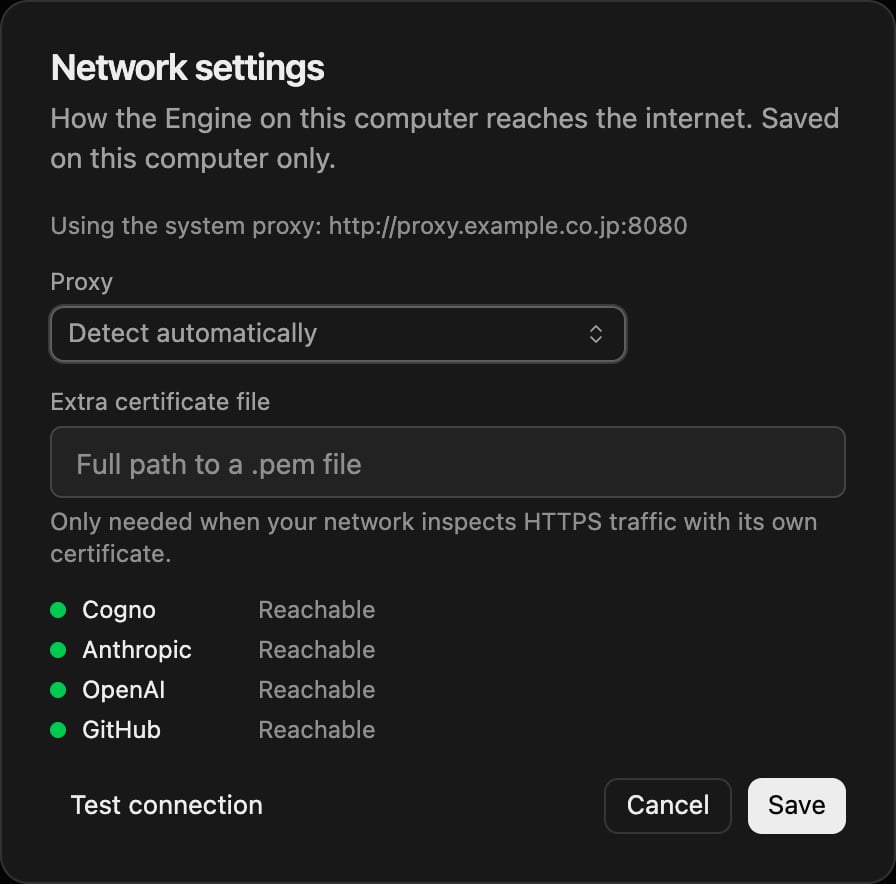
The Network settings dialog after Test connection.
Reference
Troubleshooting
For anything not listed here, see Troubleshooting.