

TL;DR
- Ready to work right after install. Claude Code and Codex now come with Cogno, so there is nothing else to set up before your first Task.
- Connects from more networks. Cogno follows your computer’s network settings, and the new Network settings lets you adjust and test the connection.
- Agents do more on GitHub. They can merge a pull request, open an issue, comment, request a review, and close a pull request. Each asks you first by default.
- One GitHub connection for the whole Workspace. Members no longer need to link their own GitHub account. A Project can limit agents to its own repositories.
- A calmer Task screen. The title bar shows only the Task name, the panel tabs move up into it, and the right panel folds away with one click.
Ready to work right after install
Cogno now includes Claude Code and Codex on macOS (Apple silicon) and Windows. Install the app, sign in, and your computer is ready to run Tasks. There is no separate install step. Settings → Execution → Agents shows which copy each Task uses: Bundled with Cogno, Custom path, or Installed on this computer, with its version and location. To use your own copy, choose its file under executable path. Use default switches back to the bundled one.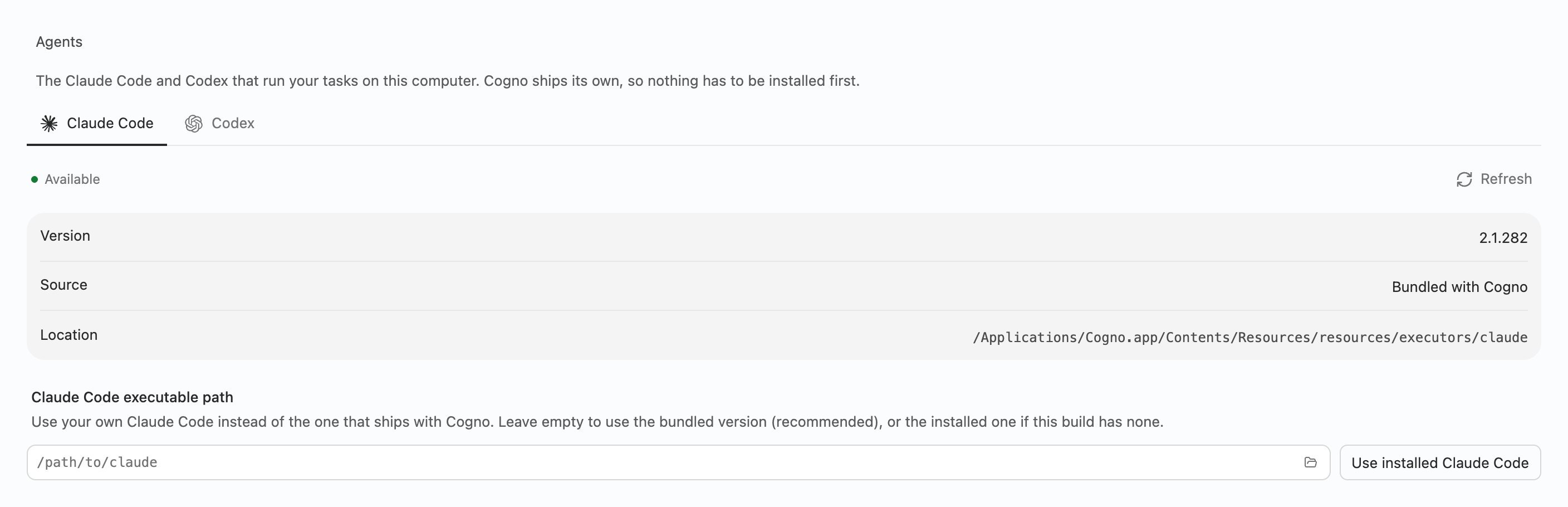
Claude Code here is the copy bundled with Cogno.
Intel Macs and Linux don’t include the bundled agents. They keep using the Claude Code and Codex installed on the computer.
Connects from more networks
Cogno now follows your computer’s network settings, including a proxy if you use one. The same connection is used for Cogno itself and for everything a Task runs, such as Claude Code, Codex, git, and the terminal. When you move between networks, Cogno adjusts on its own without a restart. Open Settings → Machines → Network settings to choose Detect automatically, Enter manually, or No proxy. Test connection checks each service Cogno uses and tells you what to fix if one can’t be reached. These settings are saved on the computer only.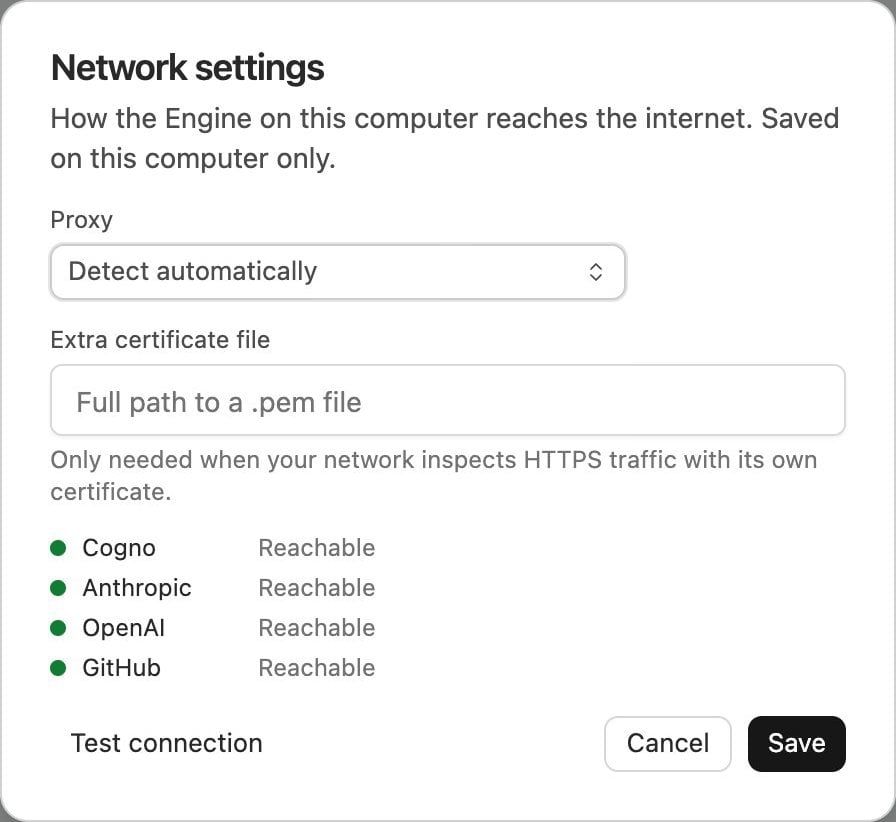
Every service Cogno uses is reachable.
Agents do more on GitHub
Agents can now:- Merge a pull request. Cogno refuses if the pull request is a draft, has conflicts, or its checks haven’t all passed.
- Open an issue, add a comment, request a review, and close a pull request.
One GitHub connection for the whole Workspace
Access now comes from the Workspace’s GitHub App connection. Every member and every run can use the repositories it reaches, so no one has to connect a personal GitHub account first. The repositories you selected for the connection are the limit. To keep a Project’s agents to that Project’s repositories, open Project settings → Integrations → GitHub and turn on Only this Project’s repositories. If the Project’s repositories change later, Match this Project’s repositories updates the limit.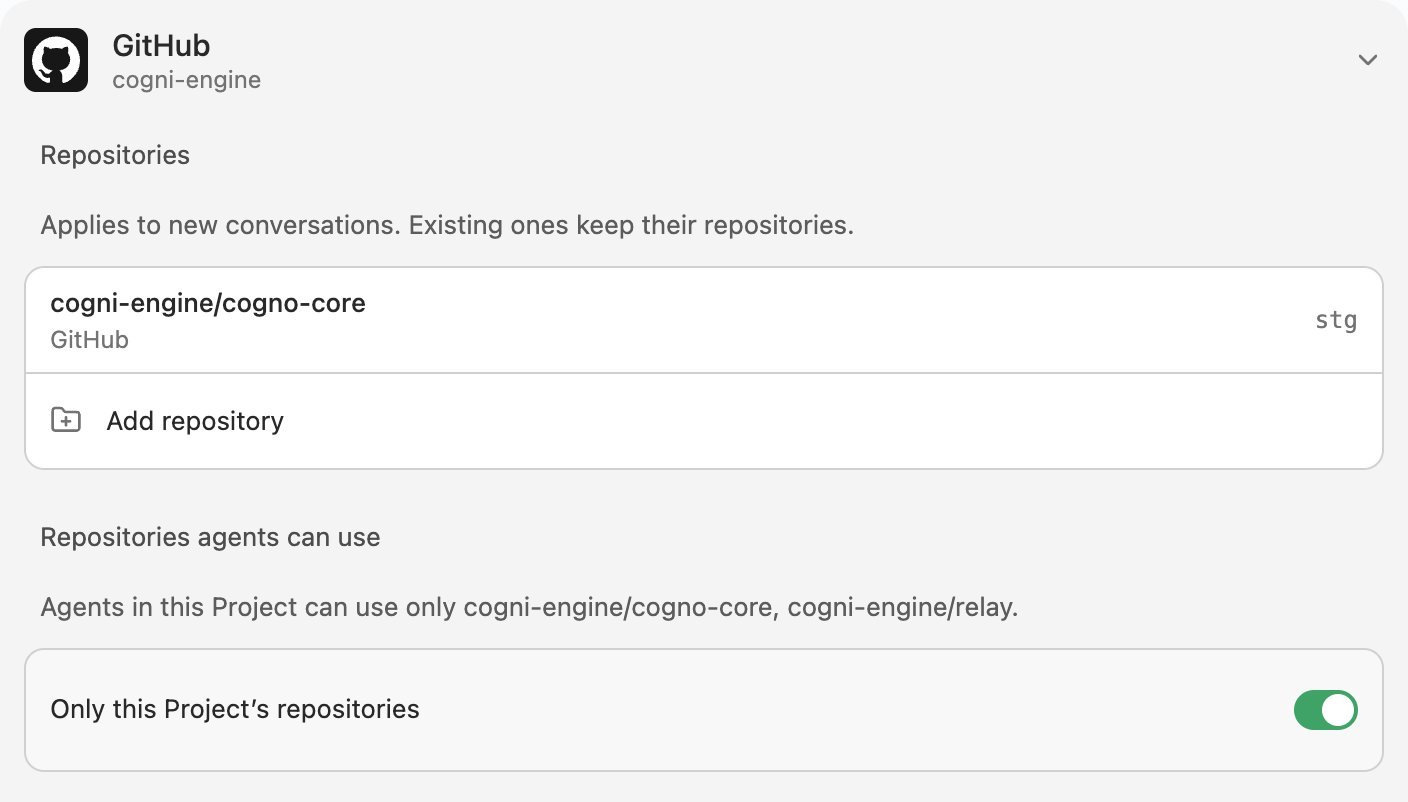
This Project's agents can use only its two repositories.
A calmer Task screen
- The title bar shows only the Task name. The Actions, Files, Search, and Review tabs sit in the title bar above their panel.
- The right panel folds away and back with a short animation.
- A Task shows only the properties that have a value. Add others from the … menu.
- The access menu uses short names: Ask, Auto, and Full access.
- Popovers and menus share one look, and long menus stay inside the window.
Also in this release
- Same folder, second Project: picking a folder that already has a Project asks whether to open it or create another Project there.
- Discord files: agents can read files attached in the Project’s Discord channels.
- Your Codex history stays yours: Codex conversations from Cogno’s Project work no longer appear in your own Codex history.
- Fixes: pushing a new branch to GitHub no longer fails, and images you attach to a new Task no longer stay in the composer after sending.