

TL;DR
- Claude asks instead of guessing. A question card appears in the conversation; answer it and the run continues.
- Sub-tasks sit under their parent, and you can drag a Task onto another to nest it.
- Keep typing while Cogno works. Messages queue up and go out with the next turn.
- Machines can be sized and shared. Choose how many turns a machine runs at once, and let several people share one server.
- Jira connects, and each Project’s memory can be read and edited in the app.
- Agents open their own pull requests through the GitHub connection.
Claude asks when it needs a decision
When Claude needs your call in the middle of a turn, it asks with a card — pick an option, Choose any that apply, or Something else to type your own. Answer continues the turn; Skip lets Claude carry on without it.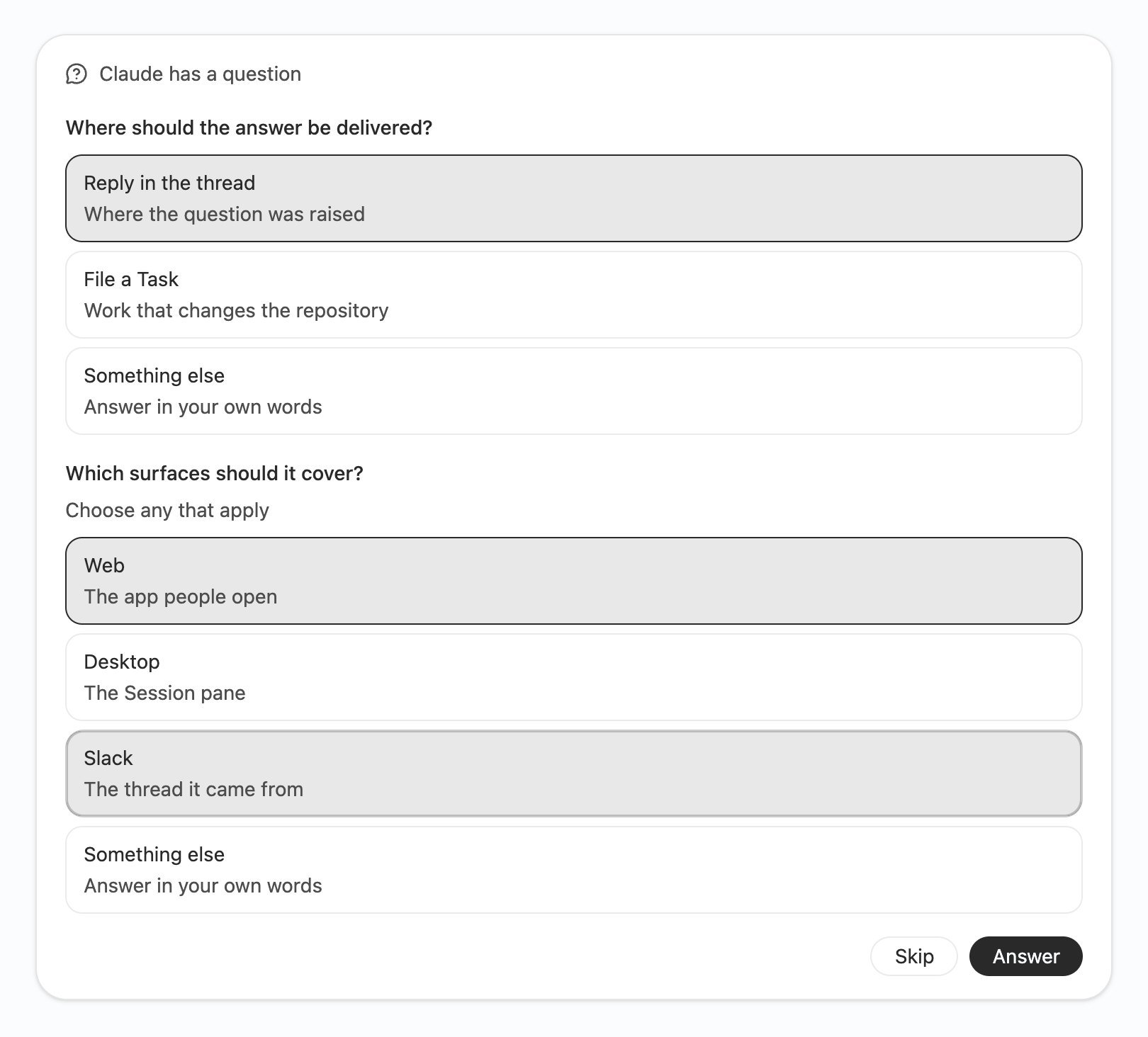
Claude has a question: one choice, a multi-select, and room for your own answer.
Sub-tasks under their parent
A Task’s sub-tasks are nested beneath it in the Task list and on the Project page, whatever their status. Hover the parent to fold them away. Drop a Task onto the middle of another row to make it a sub-task, or drag it back out to promote it. You can also drag Projects and Tasks in the sidebar into your own order.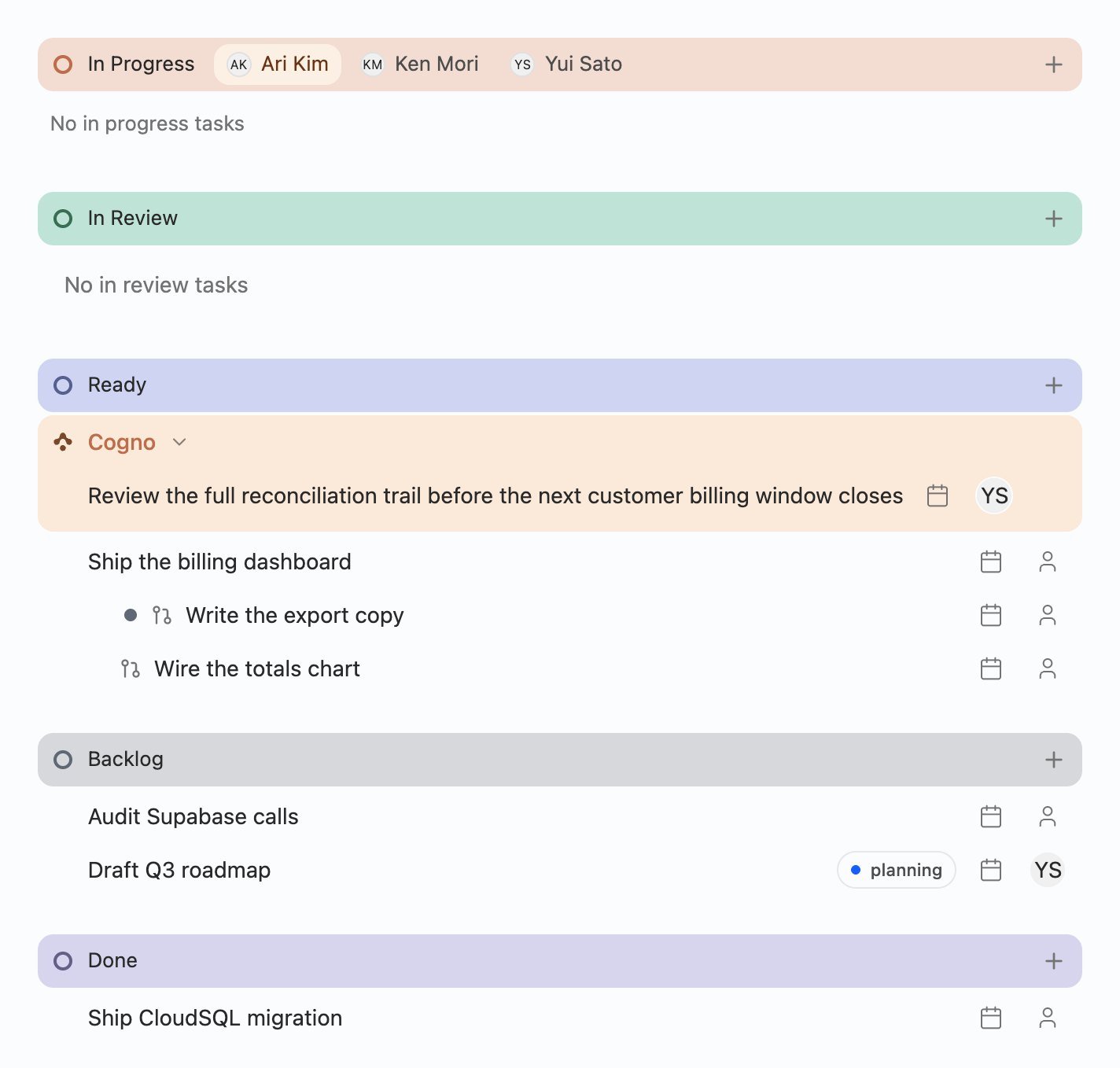
Sub-tasks stay with their parent across statuses.
Keep typing while Cogno works
While a turn runs, Enter adds your message to a queue and ⌘Enter sends it into the running turn now. Queued messages can be sent, edited, or removed, and they survive a Stop or an Engine restart.Every Task has its own page
A Task opens at its own address instead of a panel, so Back and Forward work like a browser, links can be shared, and the Task list keeps its search, sort, and layout in the address. Opening the Workspace returns you to where you last worked.Machines you can size and share
Settings → Machines has Turns at once — how much Cogno may run on a machine at the same time, so a server can take more than your laptop. Several people can share one server, each with their own account, and the machine shows how many accounts share it. Remote machines can also be updated and signed in from the list.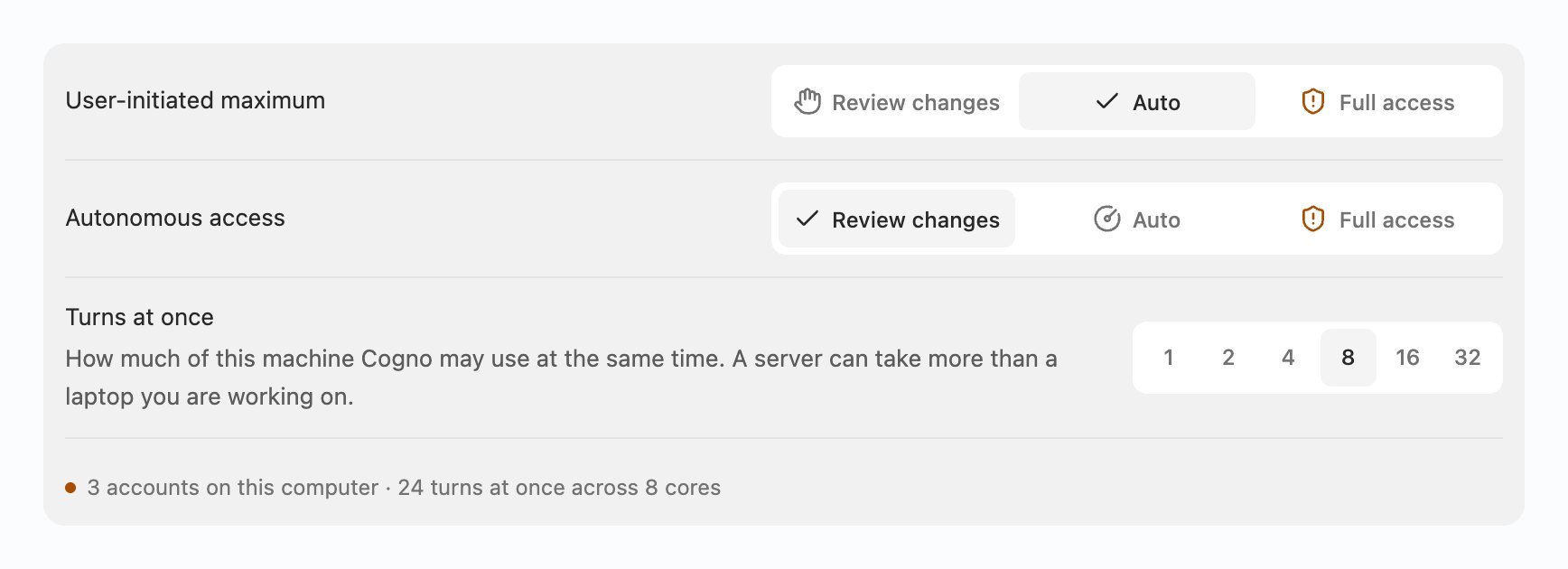
Turns at once, and a note that three accounts share this 8-core computer.
Project memory you can read and edit
Project settings → Memory shows what the Project’s agents have written down, as files you can open and edit. Changes save on their own, and if an agent saves the same file while you are editing, you choose Load latest or Overwrite with mine.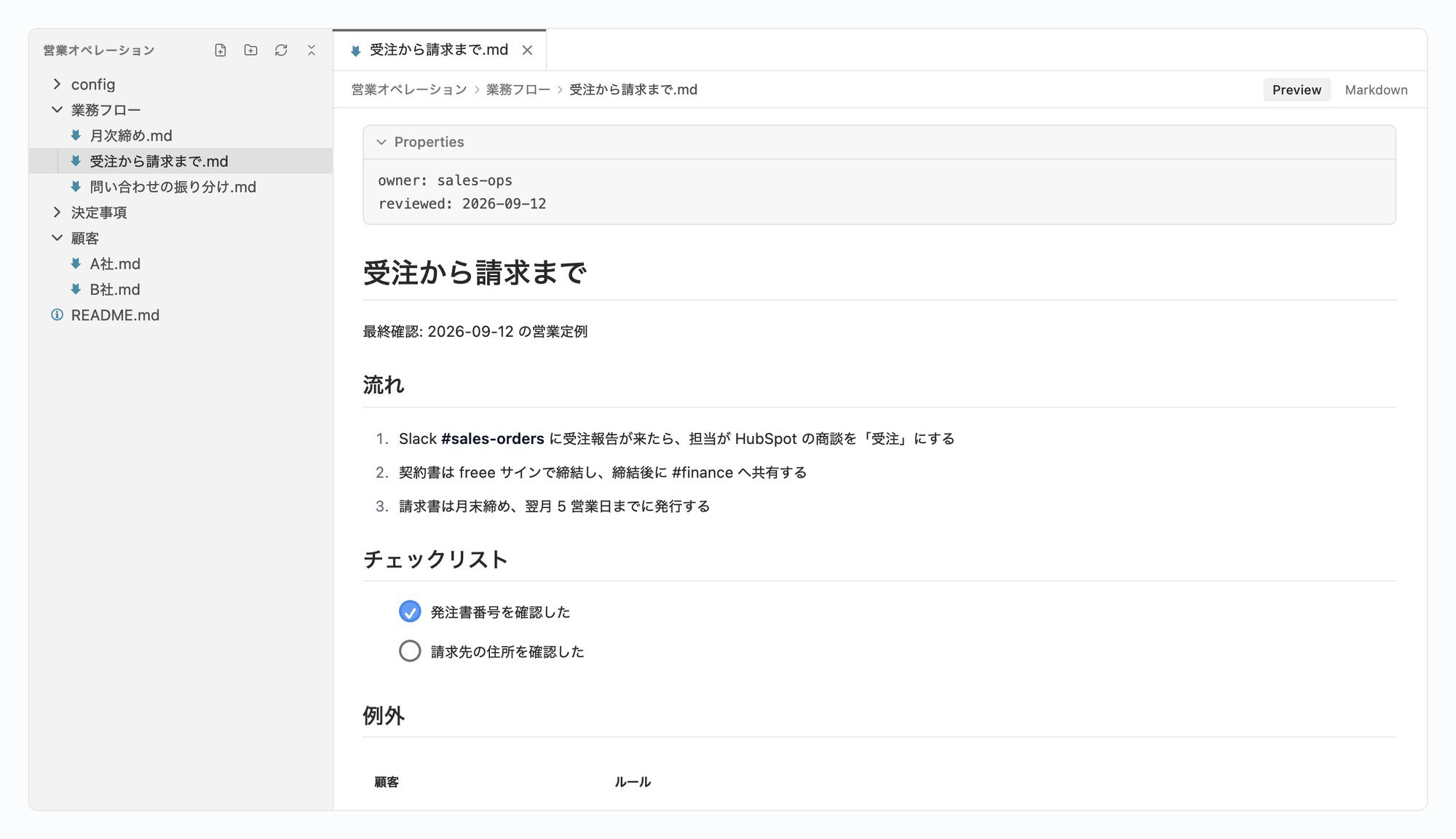
Project memory: a file explorer beside a live editor.
Jira
Connect Jira from Settings → Integrations → Jira, then pick the Jira projects each Cogno Project works in. Read Jira and Write to Jira each can be set to Block, Ask, or Allow, and comments, new issues, and assignments reach Cogno’s attention.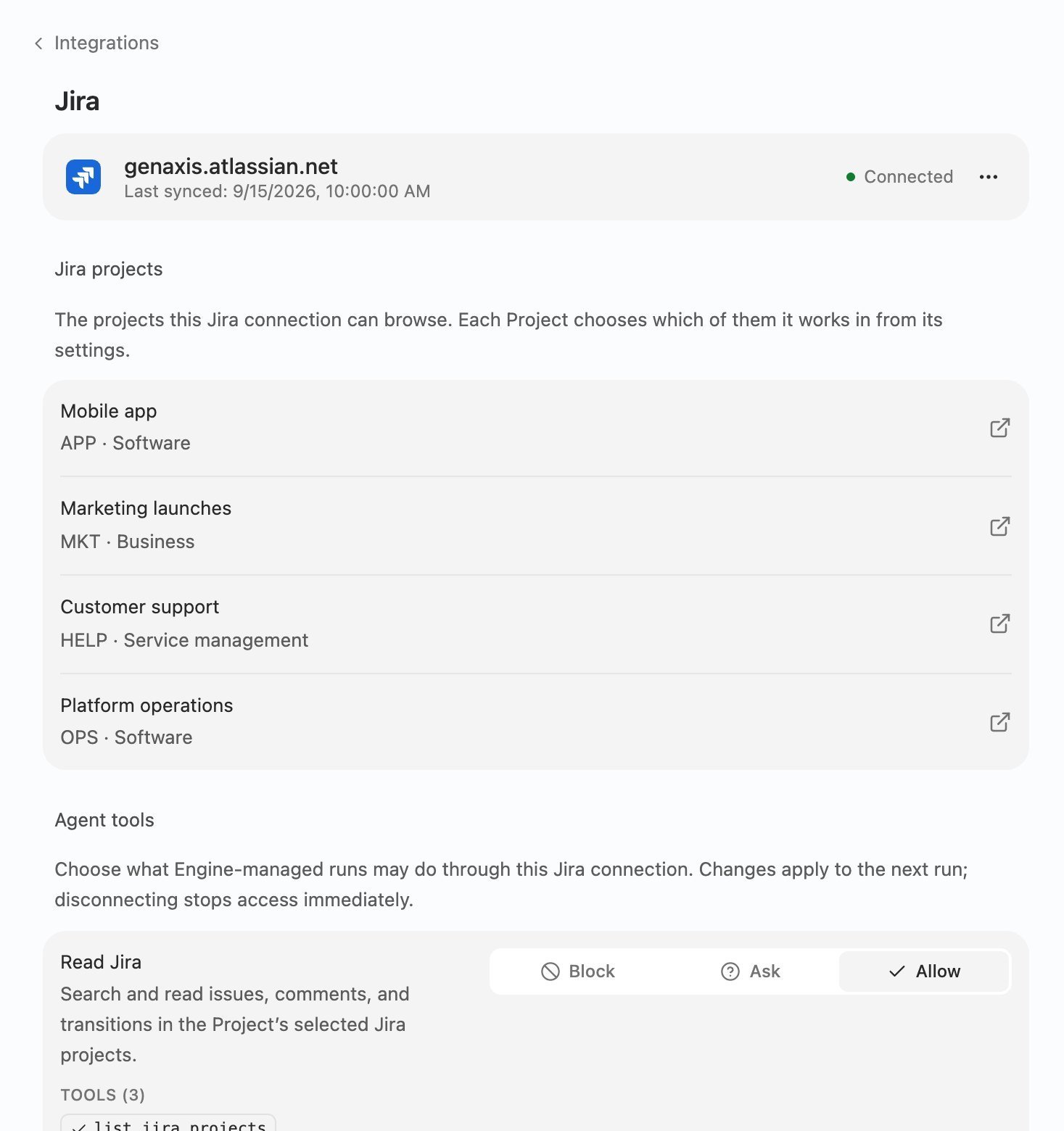
A connected Jira site, its projects, and what agents may do with them.
Agents publish their own pull requests
A run now pushes its Task’s branch and opens the pull request itself through the GitHub connection. Whether it may is set once, under the connection’s Publish to GitHub tool.Search files and arrange your panes
⌘⇧F searches and replaces across every file in the working copy, ⌘F within the open file, and ⌘P finds files by name. Settings → Execution (or ⌘,) lets you drag the conversation, files, and terminals into the layout you want.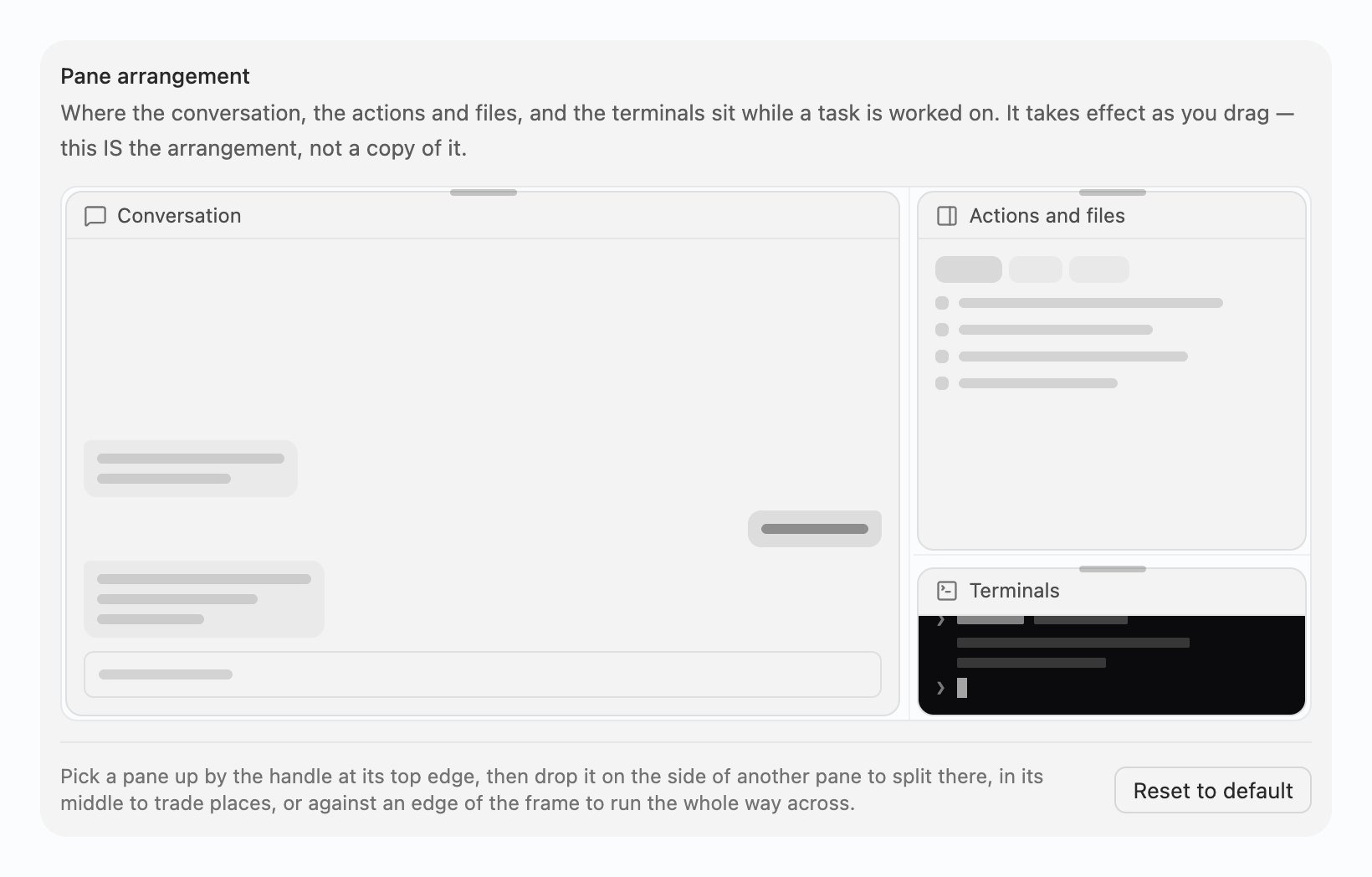
Pane arrangement: drag each pane to where you want it.
Signed out is not a failure
If Claude Code or Codex is signed out on the machine, the run says so and offers Sign in; once you have signed in, it resumes by itself. If you hit an agent’s usage limit, you can Continue with the other agent.
Also in this release
- Slack: Cogno reads files in a thread, keeps follow-up replies with the work already underway, and answers small requests in the thread instead of filing a Task.
- Microsoft Teams: group and meeting chats can be added to Projects alongside channels.
- Where a Task came from: every Task shows its source and who raised it, and hovering it in the sidebar gives a quick card with Done and Reject.
- Ports: a Ports tab beside the terminal lists dev servers and opens remote ones in your browser.
- Your last agent and model is the default for the next Task.
- Projects on another machine: create a Project from a connected machine’s folder, and move a Project’s folder without breaking the open conversation.