

TL;DR
- Record a meeting from the top of your screen. When a call starts, a record button appears at the top of your Mac’s screen. One press records the meeting and creates its notes Task.
- Task links open where you are. A Task link from Slack, Teams, or your browser opens in a small window at the top right, and you can ask Cogno to continue right there.
- See Cogno at a glance. The top of the screen shows how many Tasks wait for your approval and what Cogno is working on.
- Plan with the new Calendar and Gantt views. Tasks that span several days show as bars, and the Gantt view zooms by week, month, or quarter.
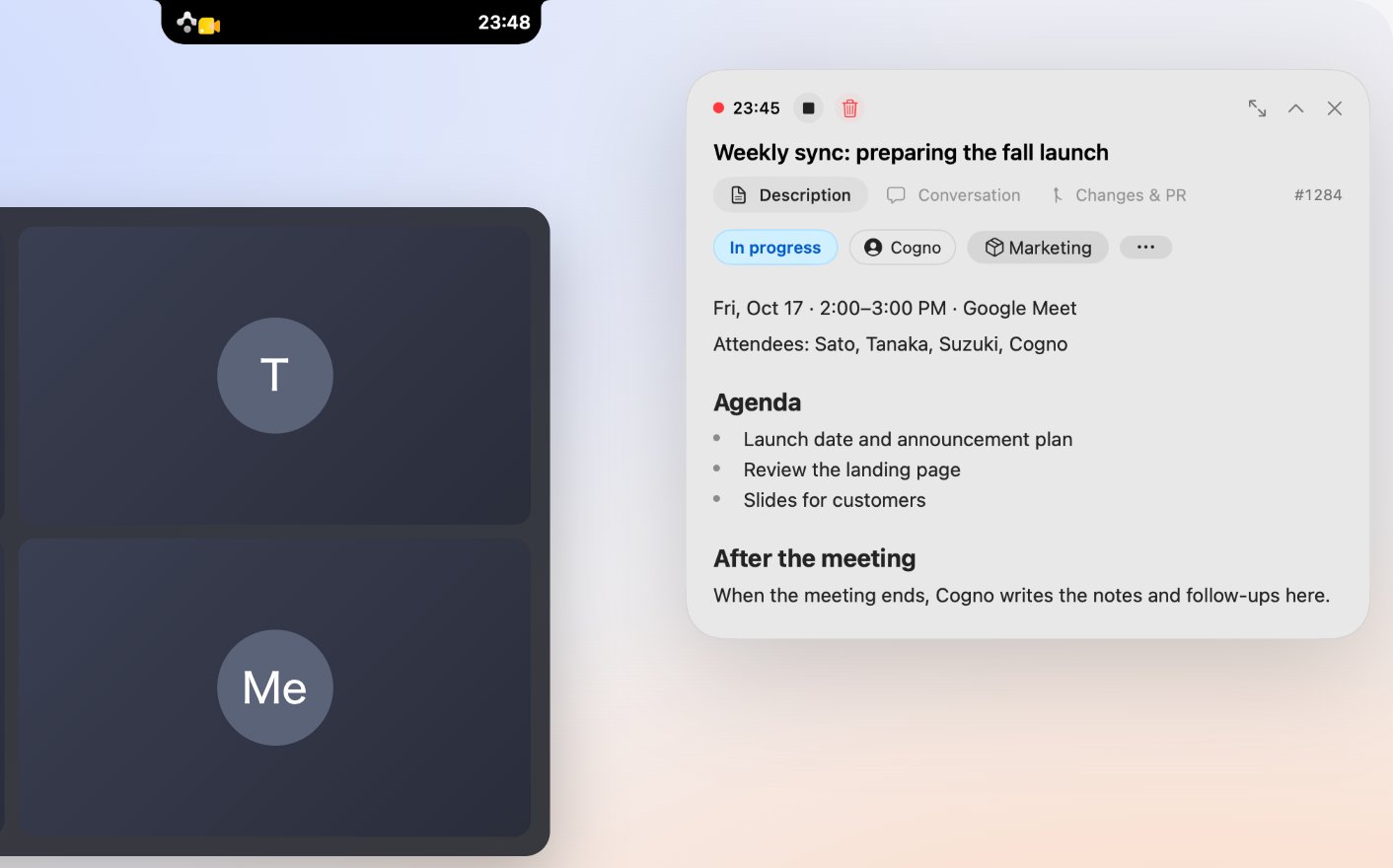
During a call: the recording time at the top of the screen, and the meeting's notes Task open at the top right.
Record a meeting from the top of the screen
When the desktop app notices a call in Zoom, Google Meet, Microsoft Teams, or a Slack huddle, a record button appears at the top of the screen. Press it to start recording.- Recording creates the meeting’s Task right away and opens it in a small window at the top right. Its recording bar shows the time, Finish, and Discard.
- While recording, the top of the screen shows the elapsed time. Press it to bring the meeting’s Task back.
- To skip a call, right-click the record button and choose Don’t record. It is not offered again until the call ends.
- On a Mac with a notch, this appears beside the notch. On a Mac without a notch, it appears as a capsule at the top right of the screen.
- When the meeting ends, Cogno writes the notes and follow-ups into the meeting’s Task.
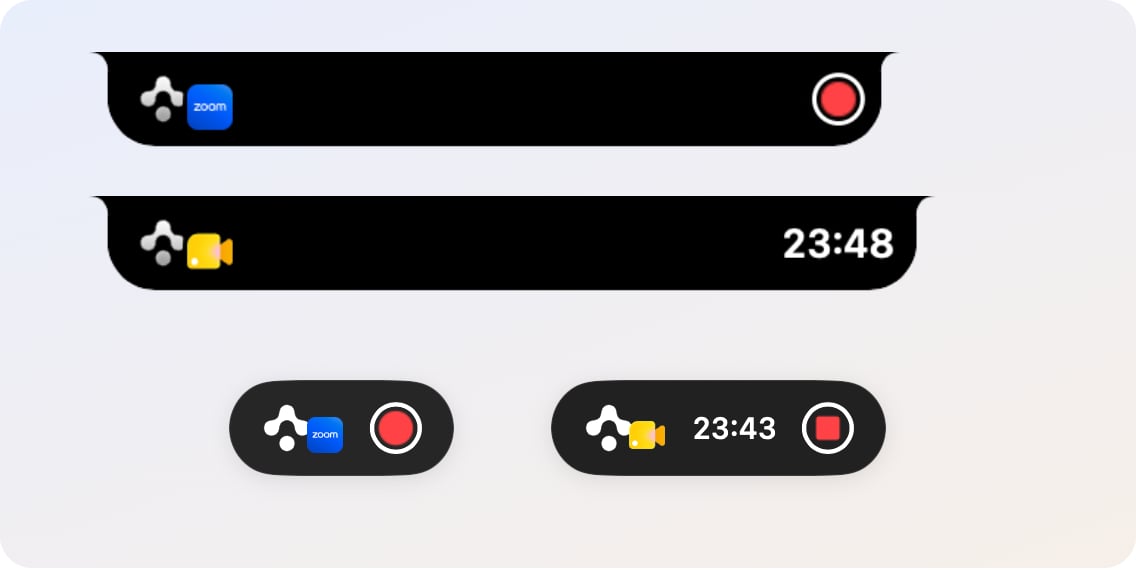
Top: a call was detected, and the record button appears. Middle: recording. Bottom: the same, on a Mac without a notch.
Task links open where you are
Select a Task link in Slack, Teams, or your browser, and the Task opens in a small window at the top right of the screen. The window you were working in stays where it is.- Read the description, change the status, assignee, or Project, and ask Cogno to continue from the message box at the bottom.
- Press Escape or click elsewhere to fold it into a small bar; select it to open it again.
- This is on by default. To open Task links in the main window instead, turn off Open Task links in a quick peek in Settings → Preferences → Links.
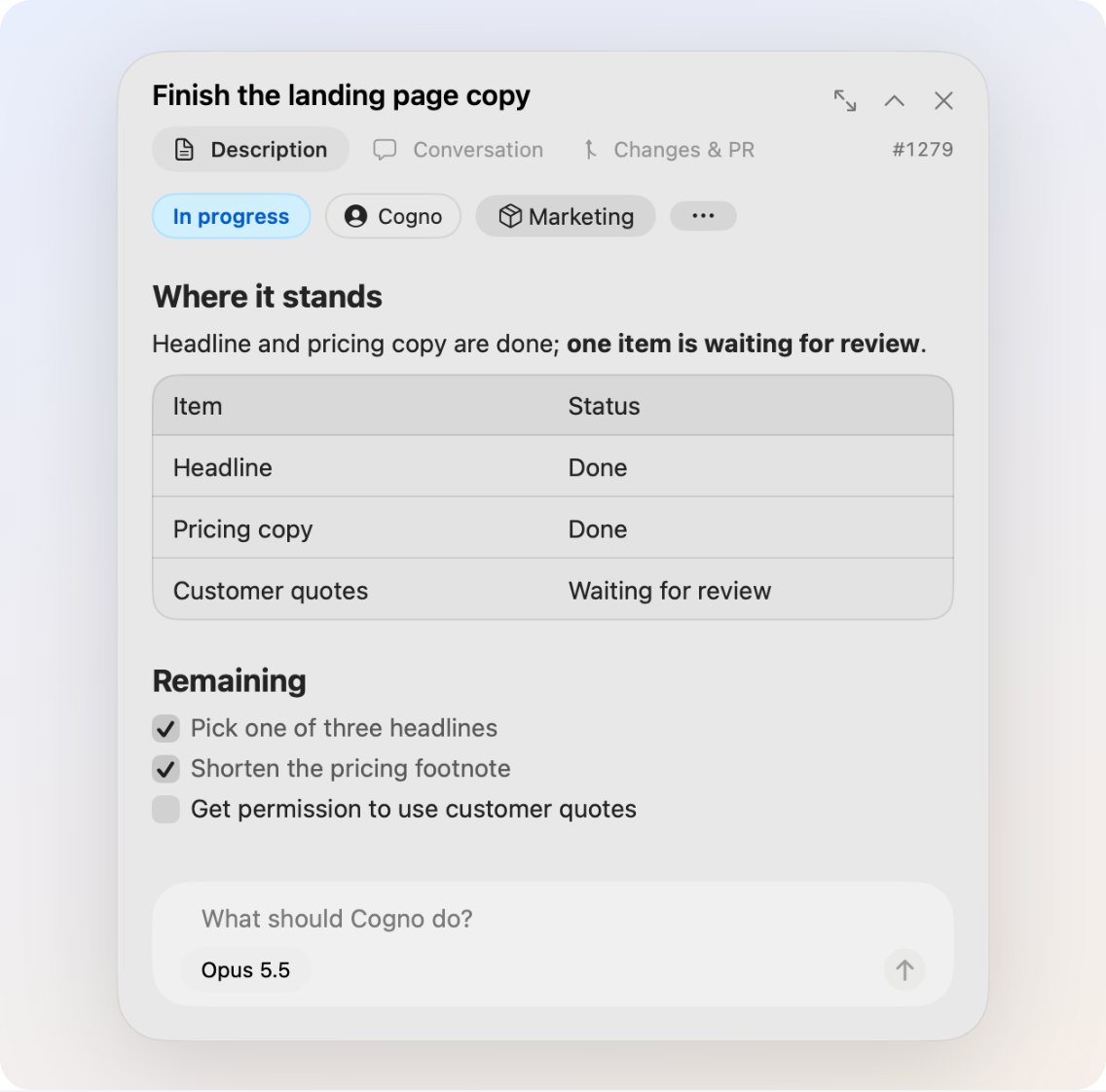
A Task opened from a link: its description, chips, and a message box for Cogno.
See Cogno at a glance
The top of the screen also shows how many of your Tasks wait for approval and whether Cogno is working on something. Press it to open the Task.
Left: two Tasks wait for your approval. Right: Cogno is working.
Calendar and Gantt
- Calendar: Tasks with a start and due date show as one bar across the days they span. Switch between Month, Agenda, and Year.
- Gantt: Tasks are listed in a table beside their timeline. Zoom by Week, Month, or Quarter, and use Hide done to hide finished Tasks.
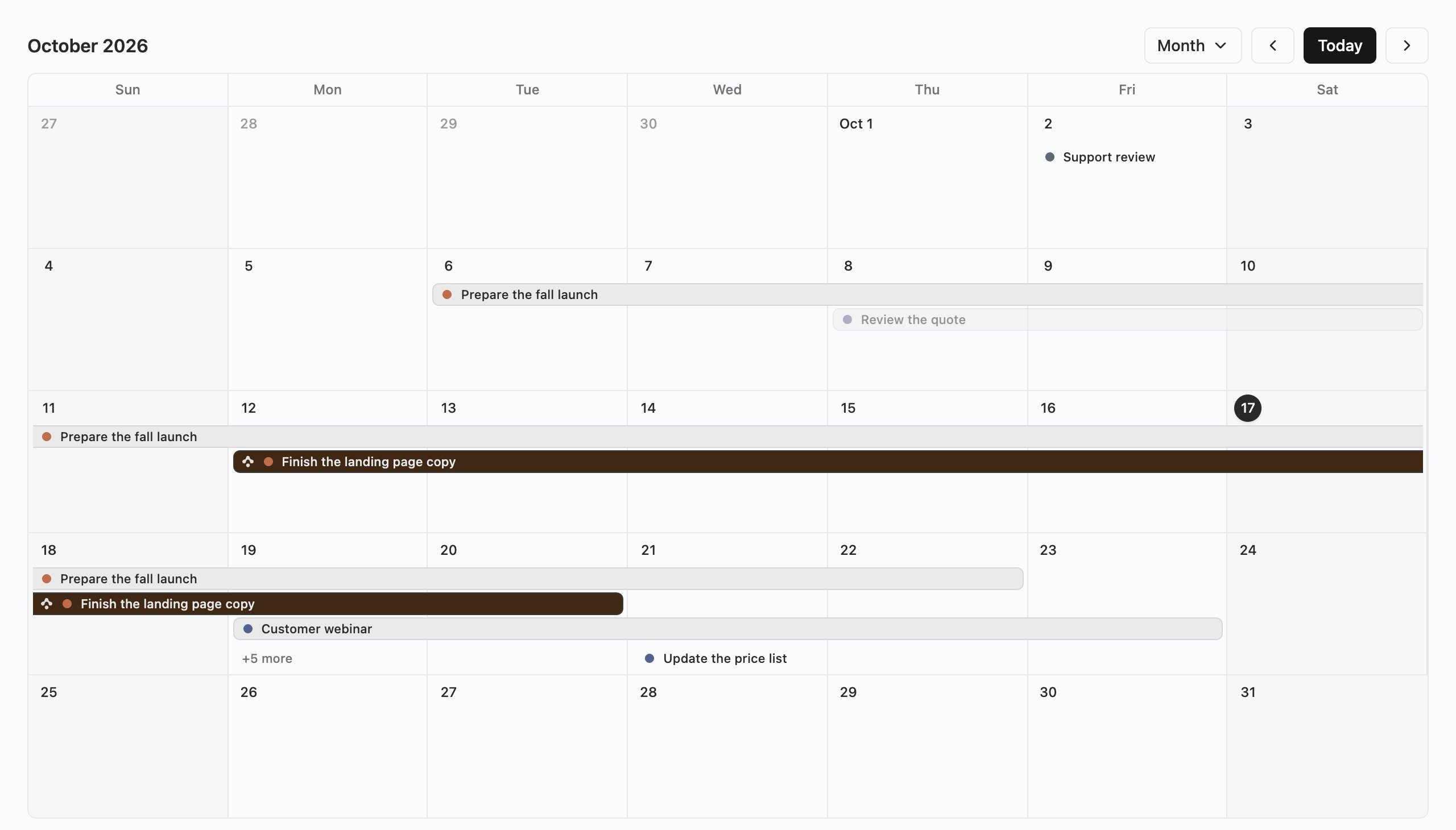
Calendar: Tasks that span several days show as bars.
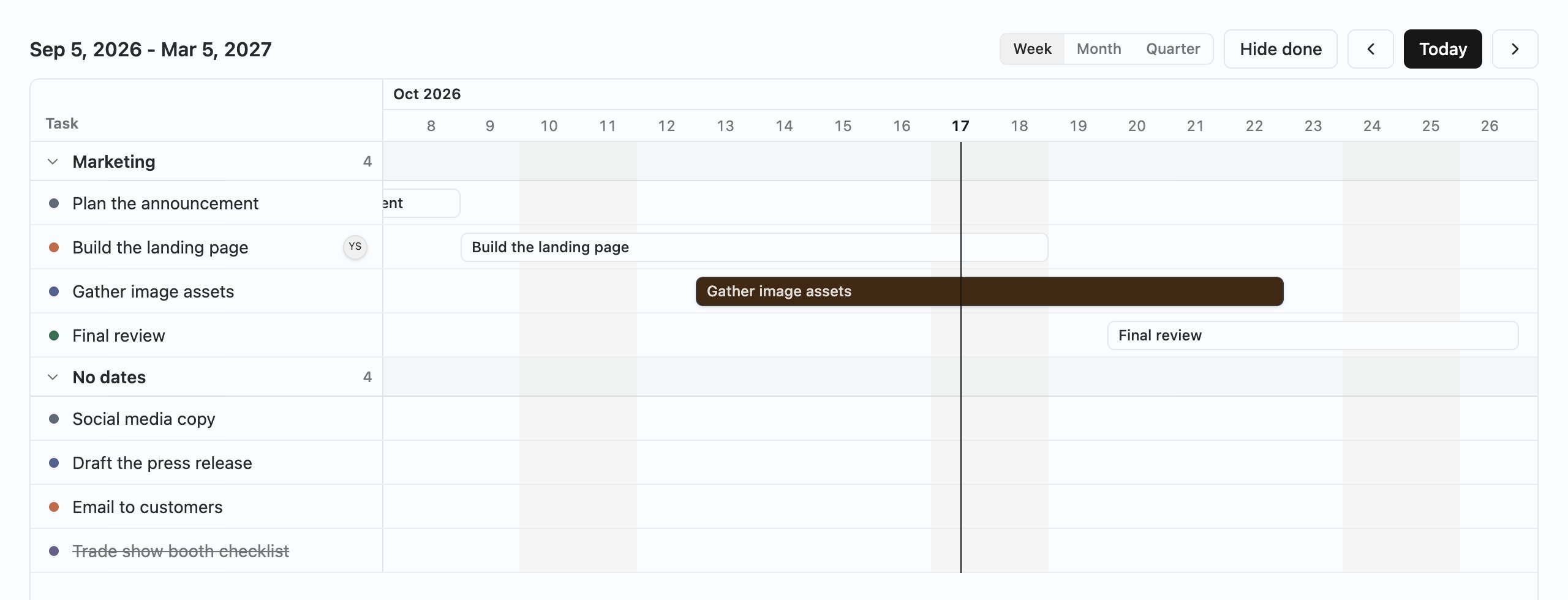
Gantt: a Task table beside the timeline.