


At a glance
Cogno uses Microsoft Teams resource-specific consent (RSC). Installing Cogno authorizes only the specific Team, group chat, or meeting chat where it is installed—not every conversation in the organization. You then decide which channels to import and which eligible chats to include. Project assignment comes later.
Human-to-human one-to-one chats are not supported. Group chats with two or more people and meeting chats are supported when Cogno is installed in that conversation.
Before you start
- Ask your Microsoft 365 administrator how Cogno is distributed in your organization. Cogno may be available through your organization’s app catalog, or your administrator may need to upload a Cogno-provided package for a limited rollout.
- Use a member work or school account in the target Microsoft tenant. Personal Microsoft accounts and guest-only accounts cannot complete account verification.
- Confirm that you can manage integrations in the target Cogno Workspace.
- Confirm that you are a current member of each Team or chat you want to connect.
Make Cogno available in Microsoft Teams
Your Microsoft 365 administrator completes one of the following paths. If you do not know which path is available for your organization, contact your Cogno representative. Do not upload a package from an unverified source.Option 1: Use the organization app catalog
1
Open the Teams app list
In the Microsoft Teams admin center, open Teams apps → Manage apps.
2
Find Cogno
Search for Cogno. Confirm that App status is Unblocked and that the intended users are included in Available to.
3
Adjust access if needed
If Cogno is blocked or unavailable to the intended users, update the organization’s Teams app settings before continuing.
Option 2: Upload the Cogno package for a limited rollout
1
Download the package from Cogno
In Cogno, open Integrations → Microsoft Teams and choose Download Teams app. On a connected Workspace it is also in the ⋯ menu. The package is built for the Cogno environment you are signed in to, so it always matches the Workspace you connect. Open Teams admin center takes you to the next step.
2
Upload the app
In Teams apps → Manage apps, open Actions, choose Upload new app, and select the package.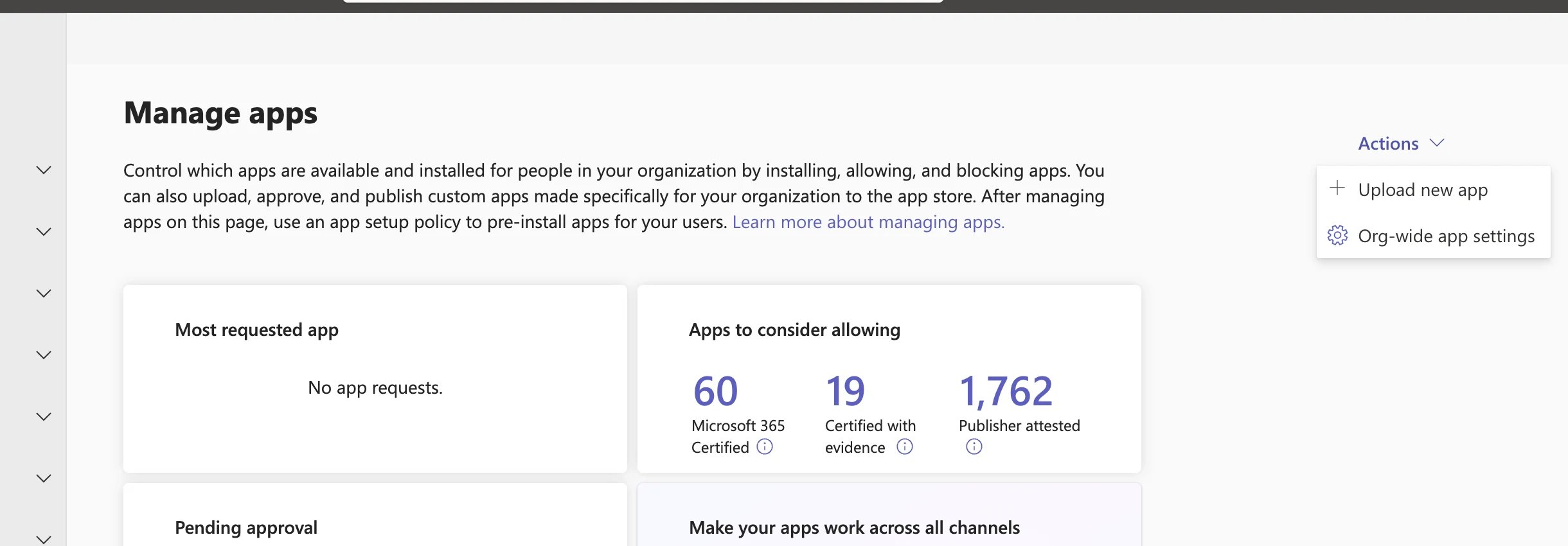
3
Confirm availability
Search for Cogno and confirm that App status is Unblocked and the intended users are included in Available to. Microsoft notes that an uploaded app can take a few hours to become available.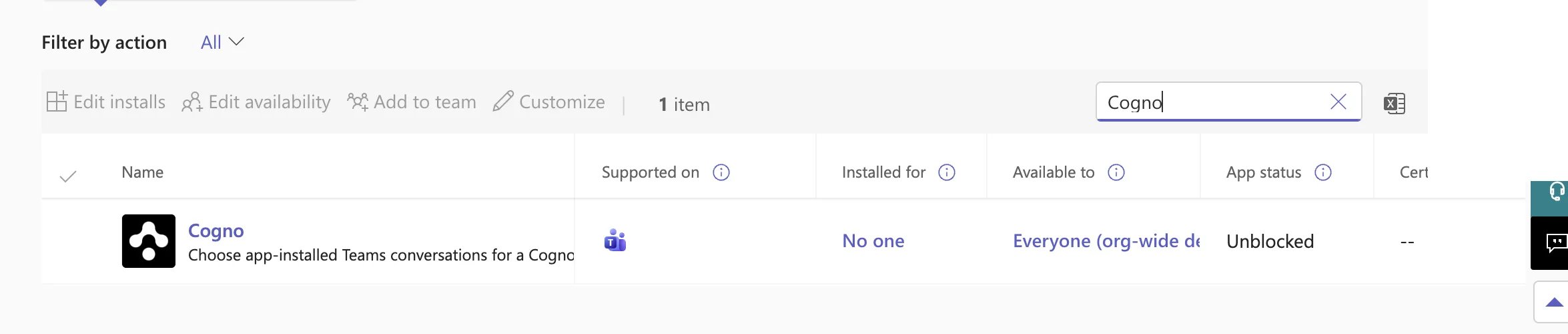
The Team owner or chat member sees the requested permissions when adding the app. These permissions do not grant tenant-wide access.
Connect Microsoft Teams in Cogno
Cogno rejects sign-in callback forms with more than 1,000 fields or a field larger than 1 MiB before processing the sign-in result.1
Open Microsoft Teams settings
In Cogno, open the target Workspace, go to Integrations, find Microsoft Teams, and choose Connect. Choose Resume instead if setup is already pending.
2
Sign in to Microsoft
Complete Microsoft sign-in with your member work or school account. On Cogno Desktop, sign-in opens in your default browser and then returns to the app. If it does not return automatically, choose Open Cogno on the completion page.
3
Complete admin approval
When Admin approval required appears, choose Open admin approval. If another person is the Microsoft tenant administrator, choose Copy approval link and send the short-lived link to that person. Cogno checks the result automatically.
4
Select a Team
At Team selection pending, open Select a Team, select one Team, and choose Connect Team. Use Load more Teams if needed.
5
Confirm the connection
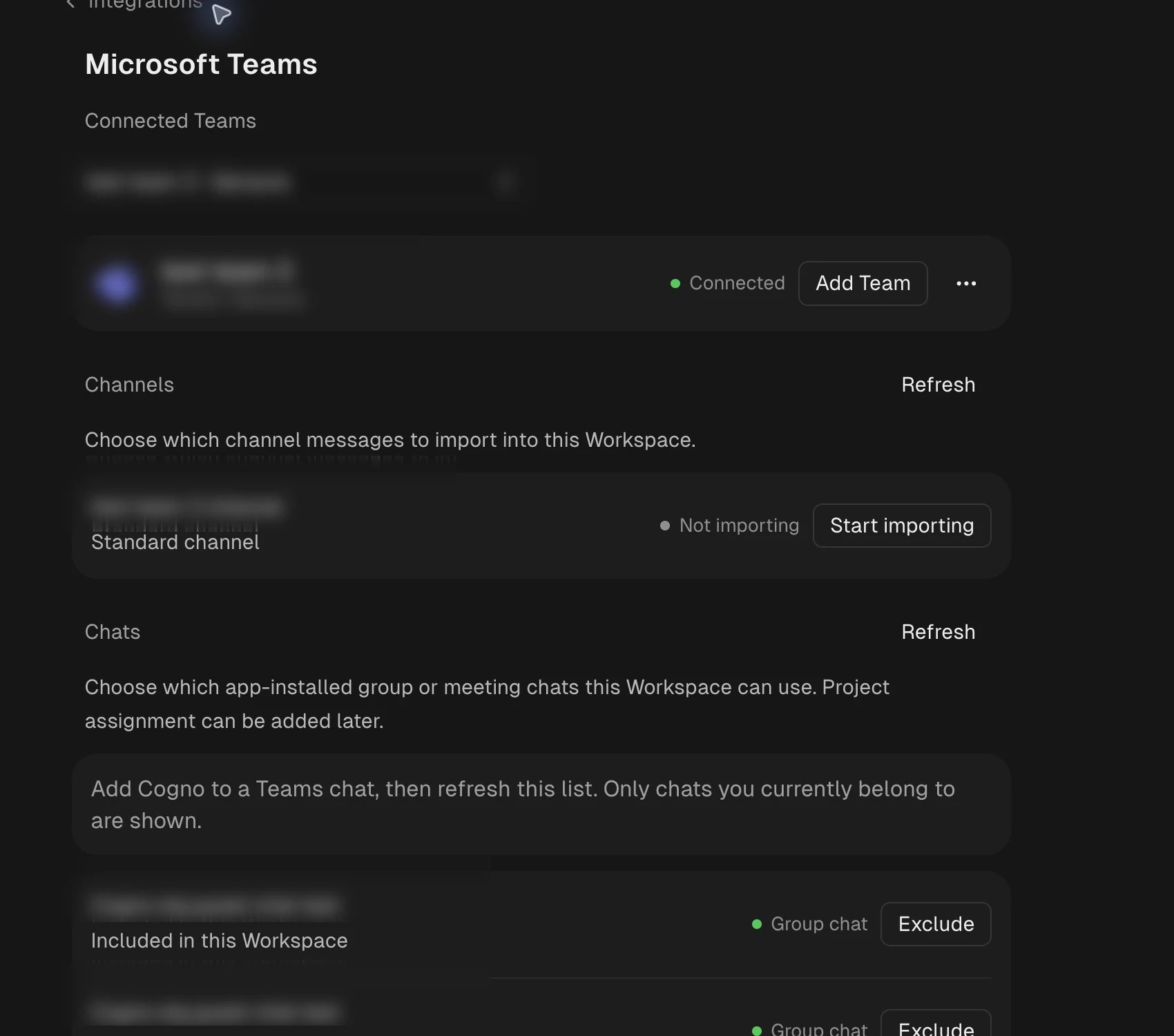
Confirm that the Team row shows the Team name, Microsoft tenant name, and Connected. Once Cogno has been added to the Team in Microsoft Teams, the row also shows Cogno app added. Use Add Team to connect another Team to the same Workspace.
Start or stop channel imports
Under Channels, turn on the switch beside every channel whose new messages should become Workspace events. Turn it off to stop one channel without affecting the others.
With more than eight channels, use Search channels to find one. Choose Refresh channels and chats from the ⋯ menu to reload the list, and Load more channels to retrieve additional channels. Viewing status requires Workspace access; changing an import requires integration management permission.
Include a group or meeting chat
1
Add Cogno to the conversation
In Microsoft Teams, open the group chat or meeting chat, add an app, and select Cogno. Review the RSC permissions and complete the add flow. No connection code is required. Cogno posts a short welcome message with the setup steps; type @Cogno help in any conversation to see them again. If someone mentions Cogno before the chat is included, Cogno replies once with how to include it; later mentions get no reply until the chat is included.
2
Verify your Microsoft account
Return to Cogno’s Microsoft Teams settings. If prompted, choose Verify Microsoft account and sign in with the account that belongs to the target chat. Cogno stores the verified account identifiers, not Microsoft access or refresh tokens.
3
Refresh eligible chats
Choose Refresh channels and chats from the ⋯ menu. Under Chats, Cogno lists only chats where the app is installed and the verified account is currently a member.
4
Include the chat
Turn on the chat’s switch. New messages can now become Workspace events, and the chat is offered to every Project next to the Team’s channels. Turn it off to stop new-message events; Projects that selected the chat lose access at the same time.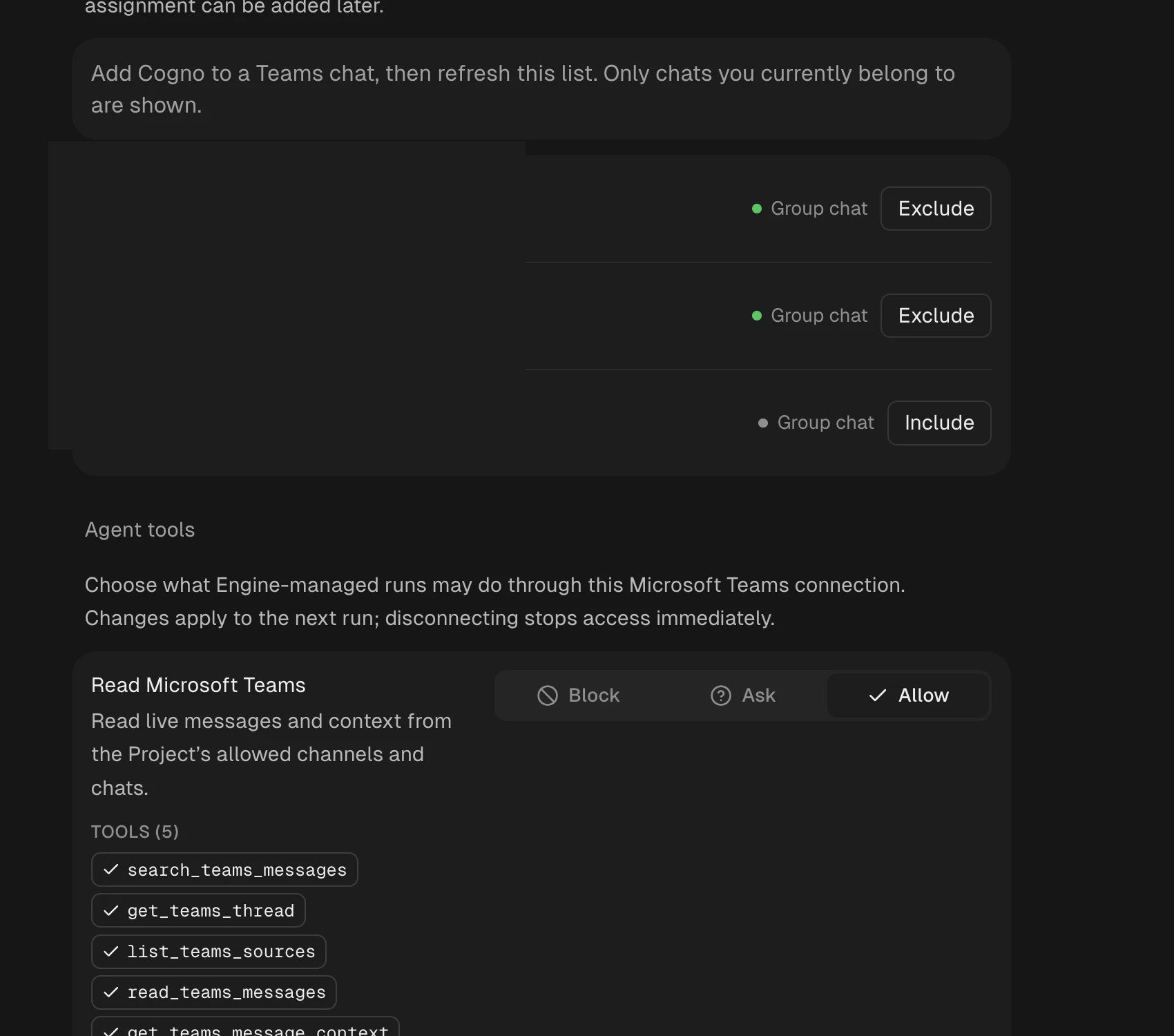
Map Teams users to members
Cogno links each Microsoft Teams user to a workspace member so that what it reads from Teams is attributed to the right person, and so that agents can mention that person. There is no sync to run. A Teams user appears under Member mapping once they post, or are mentioned, in an importing channel or an included chat on that connection. Each row is one Teams user with a member picker on the right.1
Open Member mapping
On the Microsoft Teams page, choose the Team connection if you have several, then open Member mapping.
2
Map each person
For each Teams user, open Select member and choose the matching Cogno member. To change or remove a link later, open the picker again and pick another member or Remove mapping.
Choose sources for a Project
Workspace inclusion and Project access are separate, and they work the same way for channels and chats:- The Workspace decides what Cogno may see at all: importing channels, and including app-installed chats, under Integrations → Microsoft Teams.
- Each Project decides what it takes from that: open the Project’s Integrations settings, enable Microsoft Teams, and select channels and included chats from the same list. Any number of Projects may select the same chat.
- Deselecting a chat in one Project changes nothing for the others. Choosing Exclude in the Workspace withdraws the chat from every Project at once.
Control agent read access
In the connection’s Agent tools section, Read Microsoft Teams controls seven read-only tools:teams_search_messagessearches recently stored channel messages.teams_read_filereads one of those files by itsmessage_idandattachment_id. A linked SharePoint or OneDrive file returns its text (plain text, CSV, JSON, XML and similar, and PDF page text) or the image itself; an image pasted into the message returns the image. Text is cut at 20,000 characters, images at 1 MB and PDFs at 5 MB; larger files and other types return their metadata with a note that the content was not read. Reading a linked file needs theFiles.Read.AllorSites.Read.Allapplication permission on the Microsoft application that connected the Team; without it the tool reports that Microsoft refused the file instead of returning an empty result. Only files shared in the channels the current Project selected can be read, and nothing read is stored.teams_list_channelslists the channels and chats the current Project selected.teams_read_channelreads a bounded page directly from Microsoft for one listed source.teams_read_threadreads a thread directly from Microsoft, given a source and the thread’s root message: the post and its replies for a channel, the message and the ones before it for a chat. A search result carries the source and root message it needs.teams_get_userlooks up one Teams user by the ID the message tools return for an author, and returns their display name, the mapped member, and the@Nametext that mentions them.teams_search_usersfinds Teams users by a fragment of their Teams display name or Cogno member name.
attachment_id, name and type. A file posted without a comment appears as [attachment: name], and an image pasted into a message as [attachment: image].
Choose Allow to make these tools available without a prompt, Ask to request permission during attended runs, or Block to disable them. The three live tools and teams_read_file query Microsoft at tool-call time. The two user tools answer from Member mapping, so they only know people who have posted or been mentioned on that connection; they never search the Microsoft directory. Every tool remains limited by the current Project’s selected sources; none provides tenant-wide chat search.
Send messages and replies
Send to Microsoft Teams controlsteams_send_message and teams_send_file separately from read access. Writes start with Allow, so Cogno can answer when it is mentioned. Choose Ask for approval during attended runs, or Block to stop delivery. A Project may apply a stricter setting.
The Cogno app must be installed in the target Team or chat before enabling writes. Existing installations do not need updating solely to enable these tools. Messages are posted as the Cogno bot to a channel or a group/meeting chat selected for the Project. Replies use a root message returned by the live read tools. Messages are limited to 10,000 characters. Thread replies are supported in channels. A message can carry one file from the Task: a PNG, JPEG or GIF of 1 MB or less appears in the post, and any other file appears as a card with its name, size and an Open in Cogno button that opens the Task holding it. Cogno does not place files in the channel’s Files tab, because that would require write access to SharePoint across the tenant. Reactions, edits, and deletions are not supported by these tools. Chat replies stay short: a post of more than 12 lines is refused and nothing is sent unless the person asked for the full text, so Cogno leads with the conclusion, turns a long list into an image or its top three, and keeps the details in the Task.
An @Name in the message becomes a real Teams mention when exactly one known Microsoft identity on that connection carries that name, as their Teams display name or their Cogno member name. When Microsoft confirms that multiple account IDs identify the same user, Cogno treats them as one identity for mentions and keeps their existing Member mapping entries. A matching name or Cogno member alone does not merge accounts. Missing or conflicting identity information leaves an ambiguous name as plain text. Agents get the exact @Name to use from teams_get_user and teams_search_users. If any standalone @ reference in a new post cannot be resolved, the send result tells the agent that unresolved references did not create mention notifications. This also applies when other mentions succeed. Email addresses do not trigger this warning.
Channel reads use the Microsoft application authorized when connecting the Team; they do not require a separate bot installation. Chat reads still require the app in that chat and the chat’s inclusion in the Workspace. Connected, Importing and Included do not by themselves grant Project access; the Project’s own selection does.
A selected channel remains discoverable to the agent for stored-message search even when the Cogno app is not installed in that Team. The live conversation tools and message sends still require an active app installation.
If Microsoft does not confirm a send, Cogno reports an unknown outcome and refuses automatic resending. Check Teams before trying another delivery.
Ask Cogno in a chat
Mention @Cogno in an included group or meeting chat selected for a Project to request an answer there. Cogno recognizes the Teams mention itself, not plain text that spells@Cogno, and queues a Project run to read the conversation. Cogno always answers a mention with at least a short reply in that conversation. Send to Microsoft Teams is Allow by default; if you set it or a stricter Project setting to Block, Cogno cannot reply in Teams. Cogno replies ”👀 Looking into it.” right away (in the language of your Teams client) so you can see the mention arrived; the answer follows when the run finishes, which may also wait for an available Environment. Personal one-to-one chats are not supported. Cogno may also answer a plan, to-do list or question someone shares in the conversation even when nobody mentions it, and a request to stop or change a routine is always handled. A follow-up in the same thread joins the answer already under way instead of starting a second one. For messages received through Microsoft Graph notifications, a mention in a new message (including a channel message or reply) requests an answer; adding a mention by editing an existing message, or a reaction, does not create a new request.
Verify the connection
1
Send a recognizable message
Post a harmless, unique test message in an importing channel or included chat. Do not use confidential customer content for the test.
2
Confirm the source is active
In Cogno’s Microsoft Teams settings, confirm that the channel shows Importing or the chat shows Included.
3
Test agent access
Assign the source to a test Project, set Read Microsoft Teams to Allow or Ask, and ask an agent in that Project to read the recent Teams message. The agent should only see sources selected for that Project.
Disconnect
Select the Team under Connected Teams, open the ⋯ menu on its row, choose Disconnect, and confirm the Team name. Cogno stops imports for that connection. Other connected Teams remain active.Common states
Reference URLs
- Microsoft: Manage apps in the Teams admin center
- Microsoft: Upload and manage custom apps
- Microsoft: Add an app to Teams
- Microsoft: Resource-specific consent permissions
- Microsoft: Manage consent to apps