


At a glance
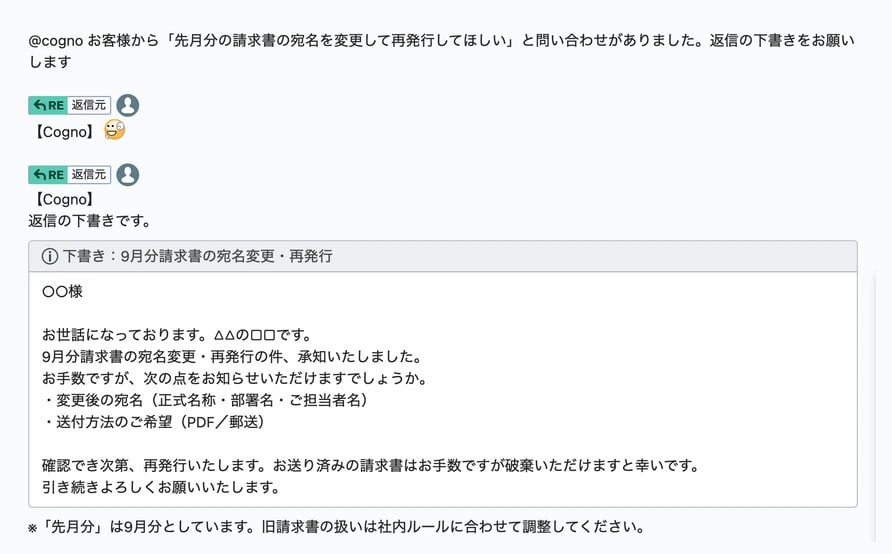
Ask Cogno in a ChatWork room and it answers there, starting every message with 【Cogno】.
Before you start
- Pick the account Cogno speaks as. ChatWork has no bots. A dedicated account named “Cogno” is best; a member’s own account also works.
- Add that account to the rooms Cogno should work in.
Connect
1
Connect the account
Open Integrations → ChatWork, choose Connect, and approve in ChatWork while signed in as the account from above.
2
Confirm the sender
Choose Confirm. Nothing is sent until you do. Only the member who connected the account, or a Workspace owner or admin, can confirm.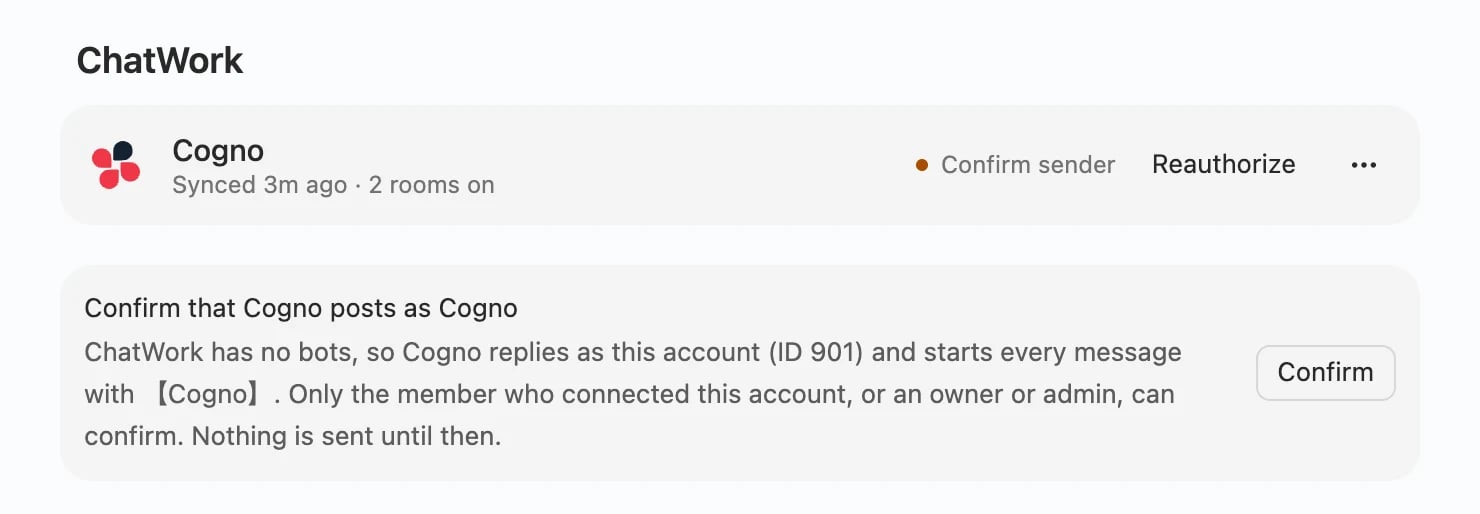
3
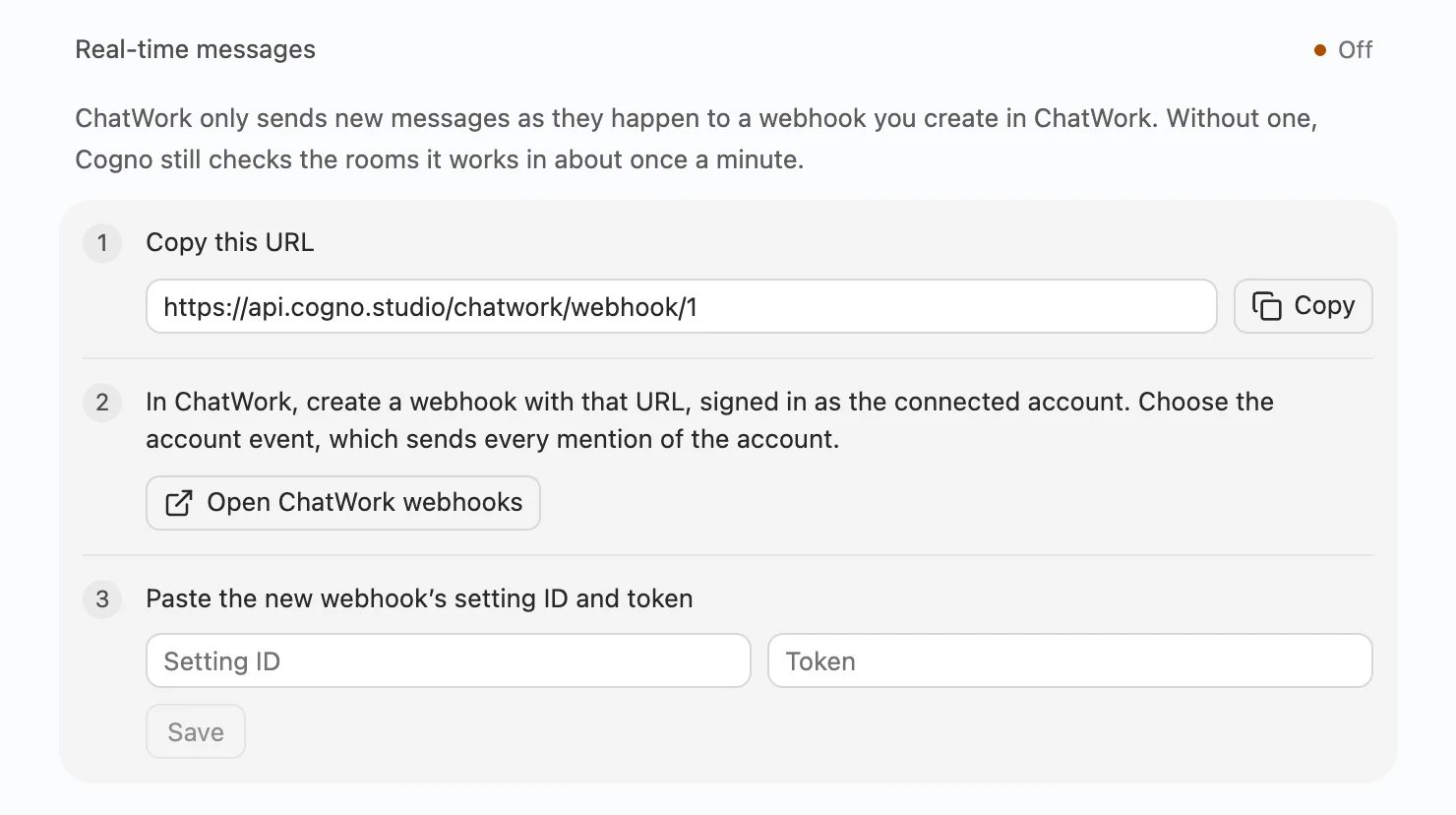
Add the webhook
- Choose Copy to copy the URL.
- Choose Open ChatWork webhooks and create a webhook with that URL, signed in as the connected account. Pick the account event.
- Paste the webhook’s setting ID and token, then choose Save.

4
Turn on rooms
Switch on the rooms Cogno should work in, then select them in a Project’s sources. Rooms start off, so nothing is read until you turn it on.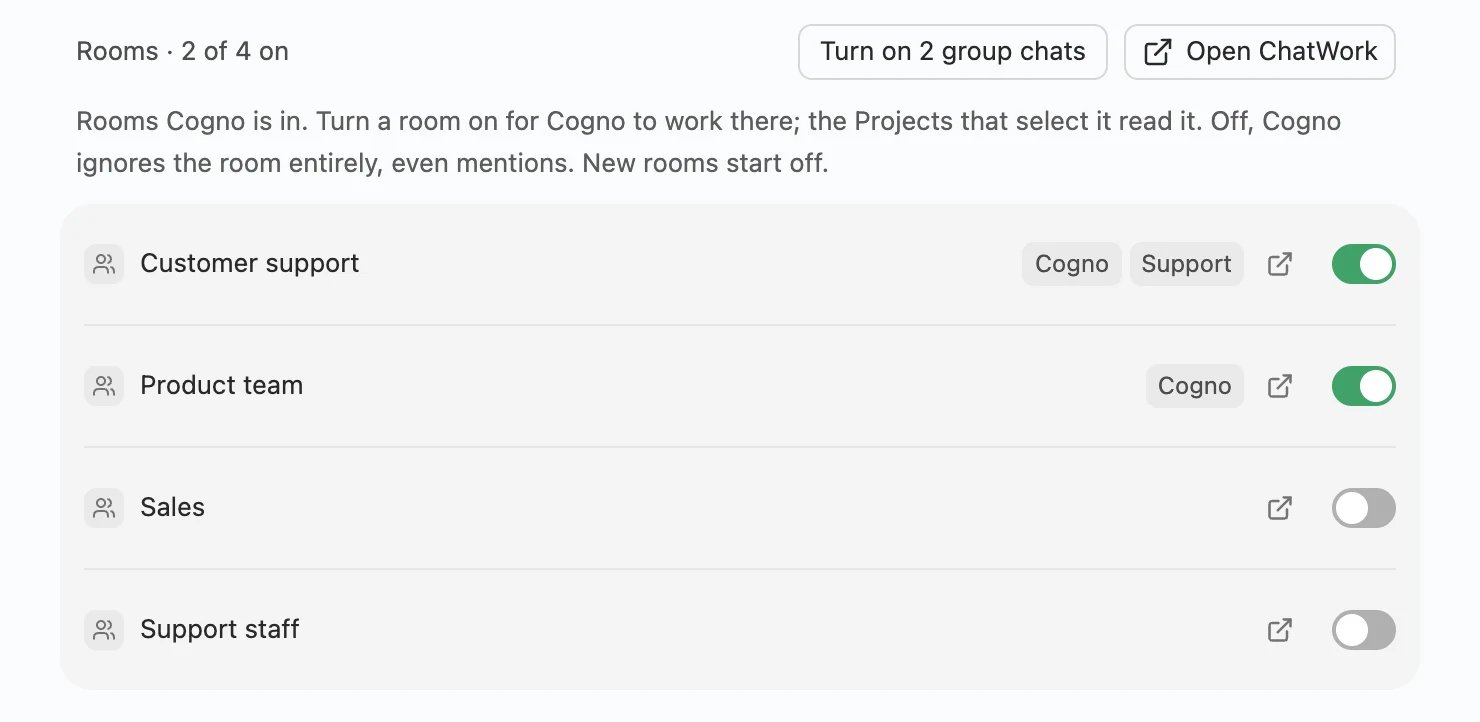
5
Keep sending on Allow
Under Agent tools, leave Send to ChatWork on Allow so Cogno can answer.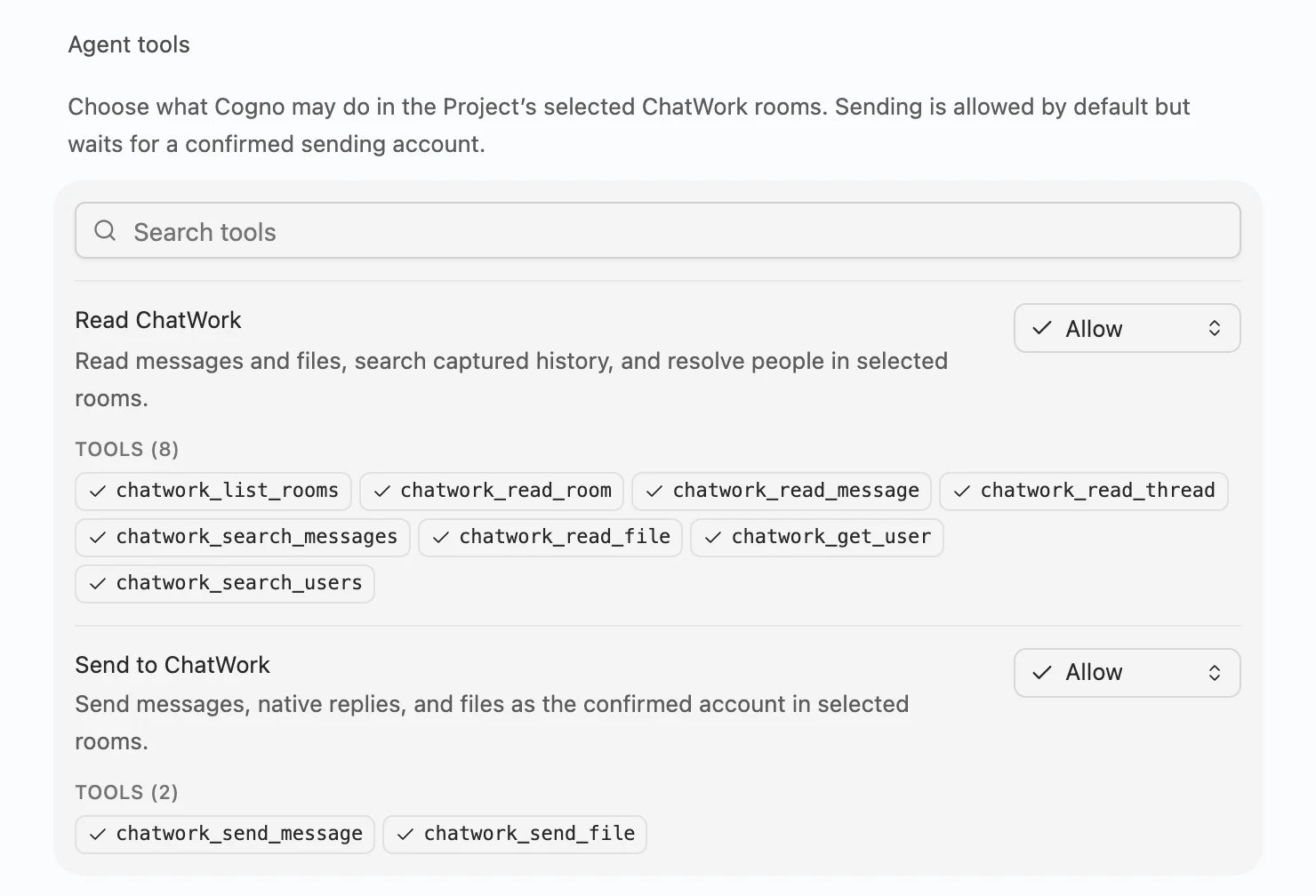
@cogno in a room that is on. Cogno replies with 【Cogno】 and an emoticon within seconds, then answers.
How people ask Cogno
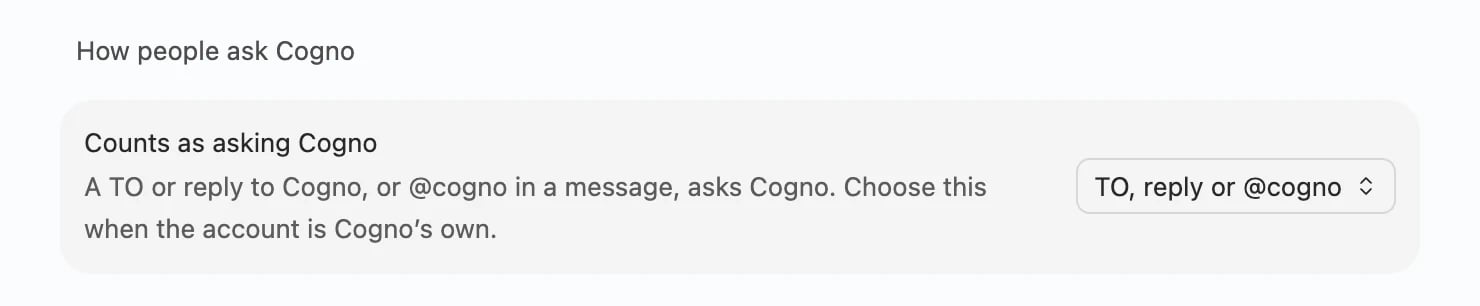
A TO or reply arrives within seconds. @cogno is picked up within about a minute.
Review replies before customers see them
Ask on Send to ChatWork does not hold a reply for approval: the answer is not sent and nobody is asked. To check drafts first, keep Allow and ask in an internal staff room: paste the inquiry, write
@cogno draft a reply to this, then send the draft to the customer yourself.Common states
Limits and details
Limits and details
- ChatWork allows five webhooks per account. Add room events (
message_created,message_updated) only where Cogno should see every message right away; other messages in rooms that are on are read about once a minute (15 rooms per account, the rest every five minutes). - Sync data recovers only the latest 100 messages in up to 100 rooms. ChatWork does not retry failed webhooks.
- Files up to 5 MB can be sent.
- Reauthorize keeps rooms, Projects and member mapping. A different ChatWork account starts again from @cogno only and must be confirmed.
- Member mapping links ChatWork people to Workspace members; Sync members lists only people in rooms that are on.
- When the member who connected ChatWork leaves the Workspace, Cogno disconnects it.
- To disconnect, choose Disconnect from the ⋯ menu.